Table of Contents
- Introduction
- Benefits of Electronic Document Delivery System (EDDS)
- Preparing Your Documents for Uploading to EDDS
- Service
- Filing
- Essential Proceedings Authorized for EDDS Submission
- Motions Authorized for EDDS Submission in Non-Essential Proceedings
- Authorized Document Types for EDDS Submission
- How to Submit Documents via EDDS
- Step 1: Welcome
- Step 2: Getting Started
- Step 3: Enter Your Information
- Step 4: Select a Court
- Step 5: Select Case Type
- Step 6: Attach PDF Documents for Uploading
- Step 7: Review Your Information
- Step 8: Thank You
- Step 9: Automated Receipt Confirmation Email
- Step 10-A: Email Confirming Acceptance and/or Filing of Documents
- Step 10-B: Email Returning Documents for Correction
Introduction
The Electronic Document Delivery System (EDDS) was developed to ensure access to New York's courts for approved proceedings during the COVID-19 pandemic. EDDS provides secure and efficient electronic delivery of documents, eliminating the need for physical contact at the courthouse. EDDS serves as a "virtual post office" for attorneys, litigants, presentment agencies, probation departments, treatment service providers and other interested parties to submit documents to the court.
Back to Table of ContentsBenefits of Electronic Document Delivery System (EDDS)
- Provides a secure method to electronically transmit documents
- Enforces strict controls over document visibility
- Includes comprehensive built-in virus checking
- Tracks the sending/receiving of documents for audit purposes
- Retains all documents in statewide content management system
Family Courts will continue to use current secure applications that are in place for certain case types including the LUC data-share for NYC abuse and neglect petitions, the Family Offense Advocate Assisted Program, and E-Share for original child support cases. The EDDS provides an optional additional tool for the Family Courts to receive essential documents.
Back to Table of ContentsPreparing Your Documents for Uploading to EDDS
Your PDF document must comply with the following criteria:
- PDF/A
- Text Searchable (OCR)
- 1-inch margins
- Resolution of 200 dots per inch
- Flattened (if multi-layered)
- NOT password-protected or encrypted
- NOT contain any objects
- NOT have long file name
EDDS requires that all submitted documents conform to PDF/A specifications. EDDS will not accept documents that contain open action tags or JavaScript. Documents may not be accepted if the above specifications are not met.
Back to Table of ContentsService
Document submission via EDDS does not constitute service of the document upon any other party. If service is required, you must serve by some other electronic means, including email or facsimile, and upload a Proof of Service document (i.e., Affidavit, Affirmation or Acknowledgement) with your submission.
Back to Table of ContentsFiling
Document submission via EDDS does not constitute filing, but you can request that your document is accepted for filing by checking the Filing box on the Enter Your Information screen [read How to Submit Documents via EDDS - Step 3: Enter Your Information]. After reviewing the document, the Court determines if the document meets established filing requirements and is suitable for filing, and you will get an email notifying you of whether your document is accepted for filing or not [read How to Submit Documents via EDDS - Step 10-A: Email Confirming Acceptance and/or Filing of Documents and Step 10-B: Email Returning Documents for Correction].
Back to Table of ContentsEssential Proceedings Authorized for EDDS Submission
Commencing a new case by electronically submitting documents via EDDS is restricted to the following essential proceeding types [read How to Submit Documents via EDDS - Step 5: Select Case Type].
-
Child Protective (NN, NA, AS, B, L, K) proceedings
Presentment agencies, attorneys and pro-se litigants can submit documents for new petitions, pre-petitions, requests for extensions of supervision, placement modifications, orders to show cause, 1028 applications, and other emergency applications. * In NYC, most original Abuse and Neglect petitions will continue to come through the LUC data-share. -
Juvenile Delinquency (D, E, S) proceedings
Submitters may include presentment agencies such as Corporation Counsel or county attorneys, other agencies such as DSS or OCFS, and attorneys or self-represented litigants. -
Emergency Family Offense (O) proceedings
The DIY Family Offense Advocate Assisted Petition Program will continue to be used for emergency proceedings when an advocate is working with the litigant. If there is no advocated involved, an attorney or self-represented litigant may use EDDS. -
Other Essential Matters
Orders to Show Cause and stipulations may be submitted on various Family Court case types that are deemed to be of an essential and emergency nature.
Motions Authorized for EDDS Submission in Non-Essential Proceedings
In certain jurisdictions, electronically submitting motion documents via EDDS is authorized in non-essential proceedings, but is restricted to existing cases only [read How to Submit Documents via EDDS - Step 5: Select Case Type].
Back to Table of ContentsAuthorized Document Types for EDDS Submission
- Pre-petitions
- Petitions
- Motions
- Orders to Show Cause (OTSC)
- Stipulations
- Notice of Entry
- Notice of Appeal
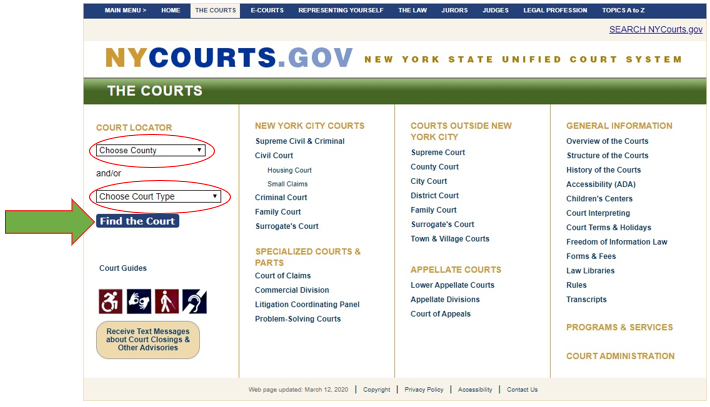
If you are unsure whether your documents are authorized for submission via EDDS, contact the applicable Court or Judicial District Office to confirm before submitting. To find court contact information, use the Court Locator on the Unified Court System's public web page, choose the county and court type from the drop-down menus, and then click the Find the Court button.
Back to Table of Contents
How to Submit Documents
The following step-by-step instructions are to guide document submitters in Family Court cases (i.e., attorneys, litigants, presentment agencies, probation departments, treatment service providers, etc.) on how to electronically submit documents via EDDS.
Back to Table of ContentsStep 1: Welcome
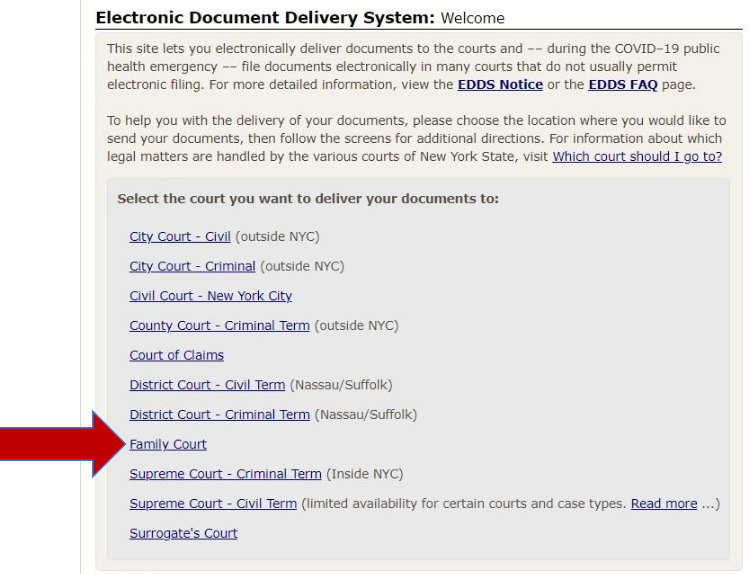
Visit the Electronic Document Delivery System submission webpage and click on the Family Court link to enter the site.
Back to Table of Contents
Step 2: Getting Started
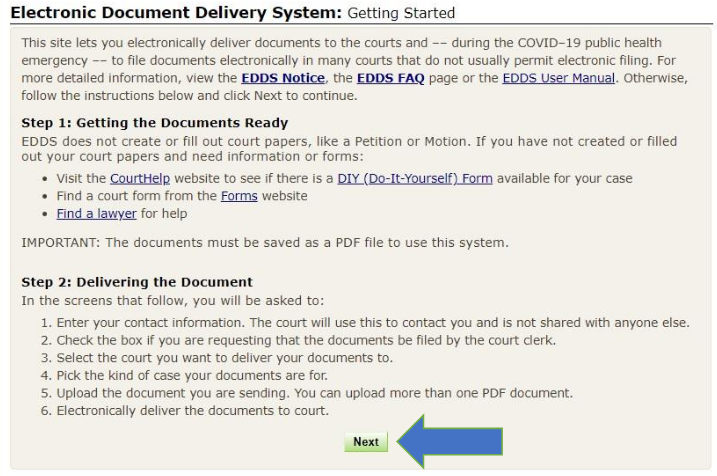
After reading the instructions, click the Next button to begin your submission.
Back to Table of Contents
Step 3: Enter Your Information
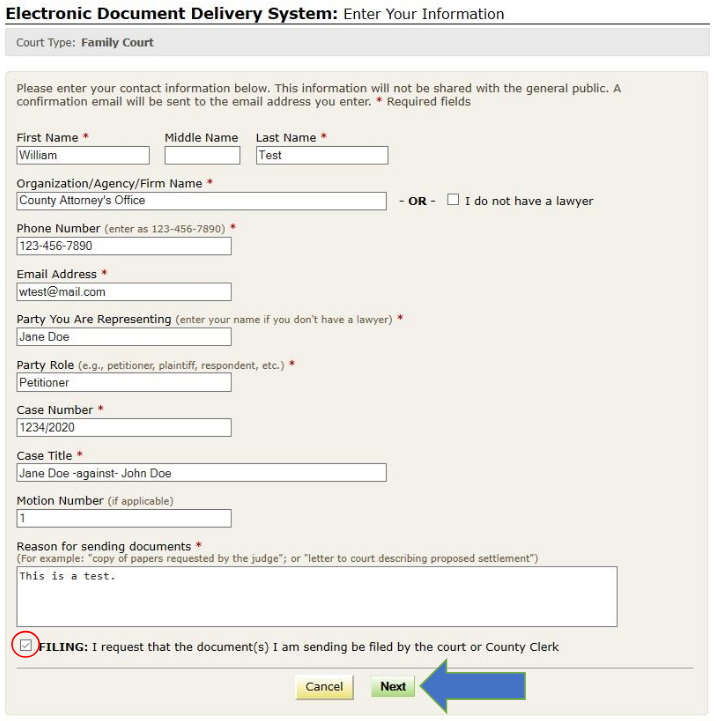
Enter your name and contact information, case information, and briefly explain why you are submitting the document(s). You must complete all fields marked with an asterisk (*). You can enter "Unknown" or "Not Applicable" in the Case Number and Case Title fields if this is a new proceeding. Check the Filing box if you want the document(s) filed by the court. Then, click the Next button to continue.
Back to Table of Contents
Step 4: Select a Court
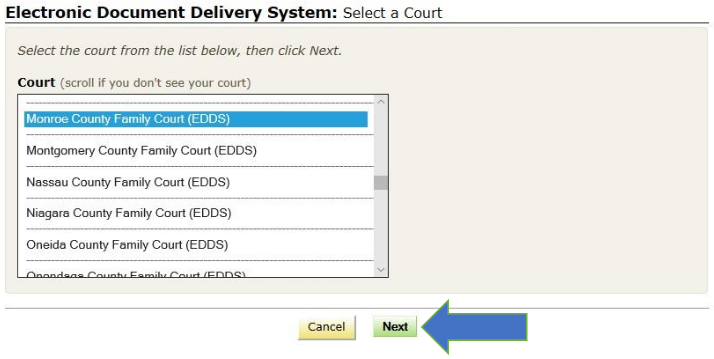
Scroll through the list to select the county where you want to submit your document(s). Click the Next button to continue.
Step 5: Select Case Type
Select the case type from the drop-down list. Click the Next button to continue.
-
If submitting documents to commence an approved essential proceeding, select the applicable case type [read
Essential Proceedings Authorized for EDDS Submission].

-
If submitting motion documents in an existing case that is not an approved essential proceeding, select "Non-Essential Case –
Motions" as the case type [read Motions Authorized for EDDS and Submission in
Non-Essential Proceedings].

Step 6: Attach PDF Documents for Uploading
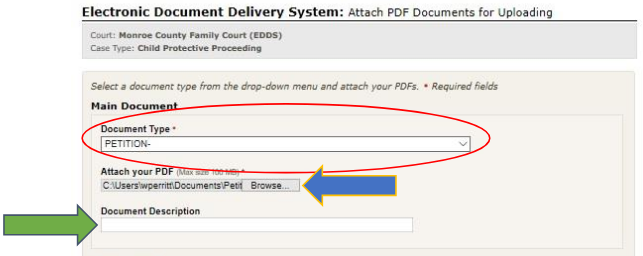
Select the Document Type you are submitting from the drop-down list and click the Browse… button to upload your PDF file. You may also enter a Document Description. If you have more than five documents to submit, click the Add More Documents button. Click the Next button to continue.
Back to Table of Contents
Step 7: Review Your Information
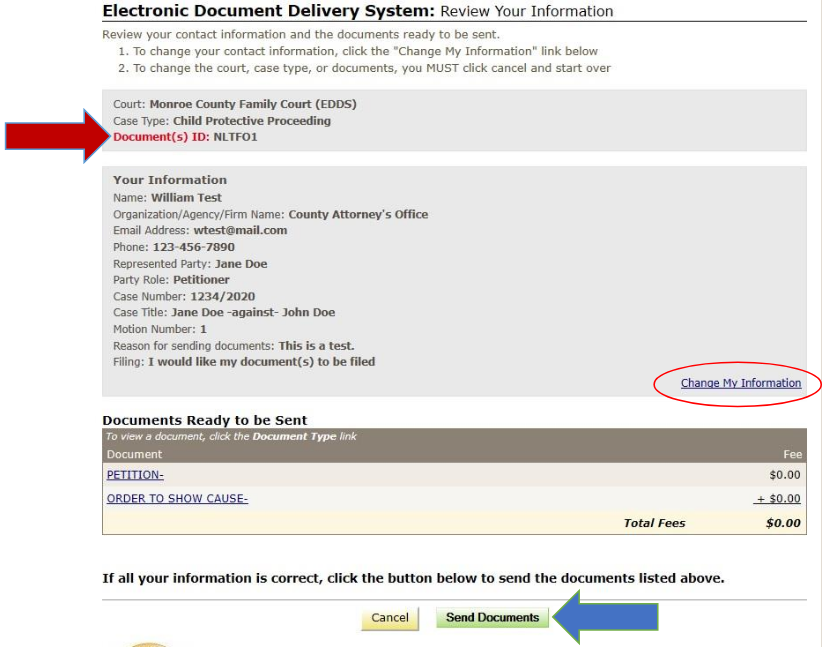
Review the information you entered. Click the Change My Information link to correct your contact information. Click the Cancel button and start over to change any other information. Click the Send Documents button to finish the submission.
Back to Table of Contents
Step 8: Thank You
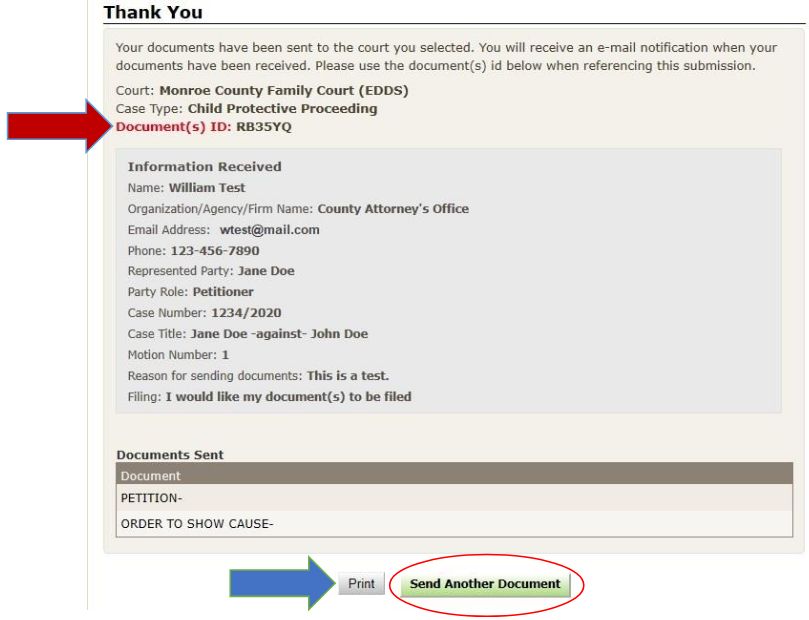
Click the Print button to print this screen. You can also click the Send Another Document button to begin a new
submission.
NOTE: You may need to reference your Document ID in future communications with the court. It is strongly
recommended that you print this screen by clicking the Print button and/or make a note of your Document ID before
exiting the screen.
Back to Table of Contents
Step 9: Automated Receipt Confirmation Email
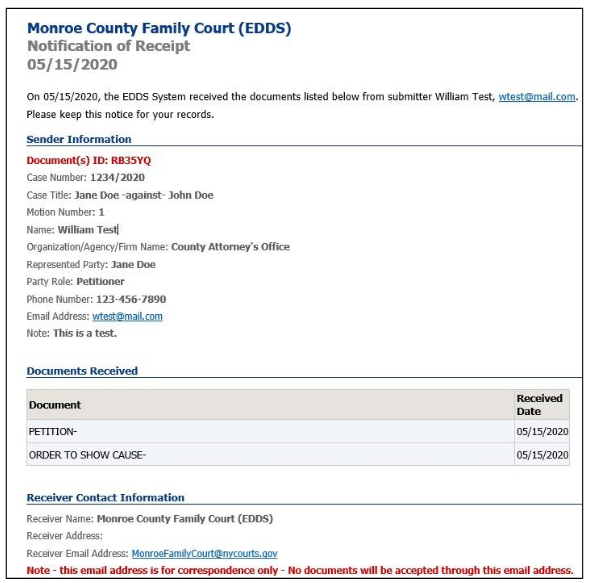
Once you have successfully submitted your documents, you will get an automated email confirming receipt by the court [see example below]. After reviewing your submission, the court may either accept your documents [read Step 10-A: Email Confirming Acceptance and/or Filing of Documents] or return them for correction if a problem is identified [read Step 10-B: Email Returning Documents for Correction]. If you checked the Filing box on the Enter Your Information screen [read Step 3: Enter Your Information], the court will also determine if your submission meets established filing requirements and will process your documents for filing if appropriate.
Back to Table of Contents
Step 10-A: Email Confirming Acceptance and/or Filing of Documents
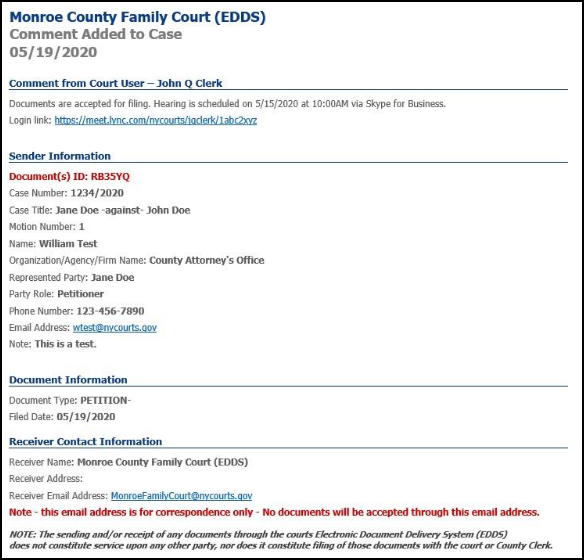
If your documents are accepted by the court, you will receive a second email, which will include important information about your submission and directions regarding how to proceed with your case [see example below]. If you do not receive a second email from the court, you may contact the court using the email address found in the email confirming receipt of your submission [read Step 9: Automated Receipt Confirmation Email], but do not use this email address to send documents to the court. It is for correspondence purposes only.
Back to Table of Contents
Step 10-B: Email Returning Documents for Correction
If your documents are returned for correction by the court, you will receive a second email, which will include important information about your submission and directions regarding how to proceed with your case [see example below]. If you do not receive a second email from the court, you may contact the court using the email address found in the email confirming receipt of your submission [read Step 9: Automated Receipt Confirmation Email], but do not use this email address to send documents to the court. It is for correspondence purposes only.

Back to Table of Contents