
Table of Contents
- Introduction
- Getting Started
- NYSCEF Features
- Starting a New Case
- Participating in Electronic Filing
- Filing Subsequent Papers, Including Motions
- E-Filing Third-Party Actions
- E-Filing Judgments
- Rejection and Return for Correction
- Service Through NYSCEF
- Converting a Case to NYSCEF
- My Case Searches
- Public Case Searches
- Your Account
- Forgot Your Password?
- Need Additional Help?
Introduction
The New York State Unified Court System has established the New York State Courts Electronic Filing, or NYSCEF system, a program that permits the filing of legal papers by electronic means with the County Clerk and the courts in certain case types in designated venues, as well as electronic service of papers in those cases. Cases may be commenced using NYSCEF and cases that were initiated in hard copy form may be converted to NYSCEF matters. This User Manual is designed to be used in conjunction with the system and to support navigating from screen to screen. Live support is also provided by the E-Filing Resource Center, where staffers are available to answer your questions from 8am until 6pm each business day. The E-Filing Resource Center can be contacted by calling 646-386-3033 or sending an email to nyscef@nycourts.gov.
Back to Table of Contents
Getting Started
To get started, go to www.nycourts.gov/efile by typing this web address in
your browser.
NYSCEF has two separate e-filing systems. One is
the "Live System," the operational system in which filings and other actions take place in real cases. For educational purposes only,
NYSCEF also makes available the "Training System." The Training System mimics the Live System in function and appearance, but no real
filings or other system actions can occur in the Training System. The Training System is not connected to the County Clerk or court
operations offices. The filings, notifications, and messages in the Training System take place or are sent only for educational
purposes in simulated cases and no fees can actually be paid in any real case in that system. Each system is identified at the top of
every page. Distinct User Names and Passwords are required for each of the two systems, and the User Name and Password of one will not
work in the other. All filings made in the Training System using a Training User Name and Password, all messages and notifications
therein, and all fee functions in the system are fictitious and of no formal effect. No case can be commenced through that system.
Anyone who wishes to make a filing in a real case or undertake another function in such a case must be certain to log into the Live
System using the Live System User Name and Password.
In this User Manual we discuss NYSCEF functionalities in the Live
System.
Due to system enhancements, several options now exist for Live System registration. New York attorneys who have
established Attorney Online Service (AOS) accounts with Attorney Registration may log into NYSCEF using their Attorney Registration
number as their User ID and their AOS password as their NYSCEF Password. All other prospective NYSCEF users, including New York
attorneys without AOS accounts, attorneys admitted pro hac vice, unrepresented parties, and filing agents, should click the
appropriate link that appears on the Create Account page.
Legislation enacted in 2015 exempts unrepresented litigants from
participating in e-filing, even in mandatory cases. However, unrepresented litigants may participate in e-filing if they so desire and
must obtain separate user IDs and passwords for each case in which they intend to e-file. An unrepresented litigant should click the
"Unrepresented Litigants" link, which will open the homepage for the Unrepresented Litigants section of the NYSCEF website. From this
page, the unrepresented litigant should click the E-Filing Basics link. At the bottom of the next page - the E-Filing Basics page -
are two links for creating an account. The Create an Account to Start a New case link allows an unrepresented litigant to commence a
new case as a plaintiff or petitioner. The Create an Account in an Existing Case link allows an unrepresented litigant to e-file in a
case where he or she is named as a defendant or respondent.
Attorneys admitted pro hac vice and filing agents will, upon
clicking the appropriate link, be brought to an online form that must be completed and submitted as per the on-screen instructions.
All classes of users register for the Training System accounts by clicking the "Create a Training Account" link on the
Create Account page and following the instructions.
Once you have a valid NYSCEF User Name and Password for the system you
may enter that system. To enter the Training System, click the Training System button in the Training section in the left hand sidebar.
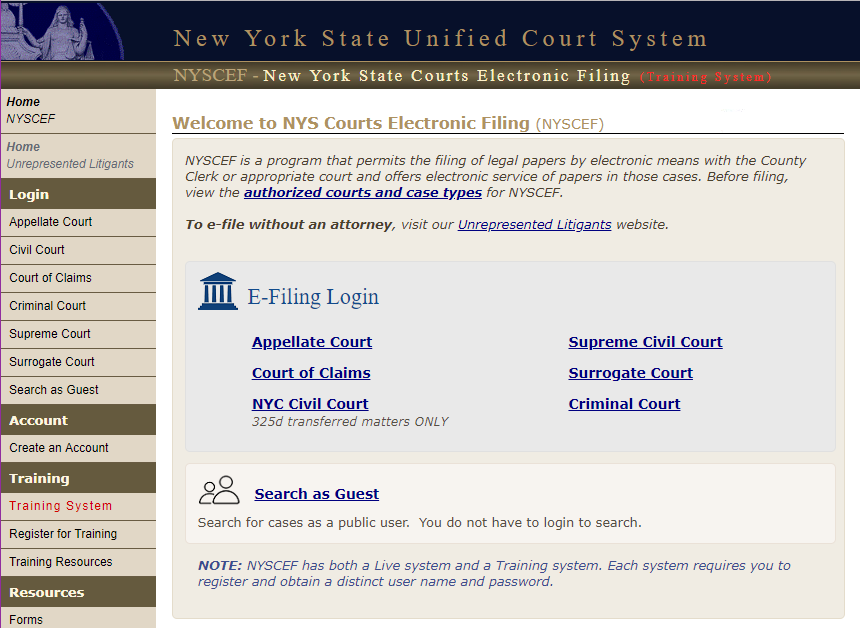
You will arrive at the NYSCEF Login page. If you are ready to start an action, file to an existing case, or record your representation,
you should log in to the NYSCEF system by entering your User Name and Password and clicking the Log In button. Note that if you have
forgotten your User Name or Password you can click the link below the Log In button and furnish the requested information so that your
credentials can be e-mailed to you.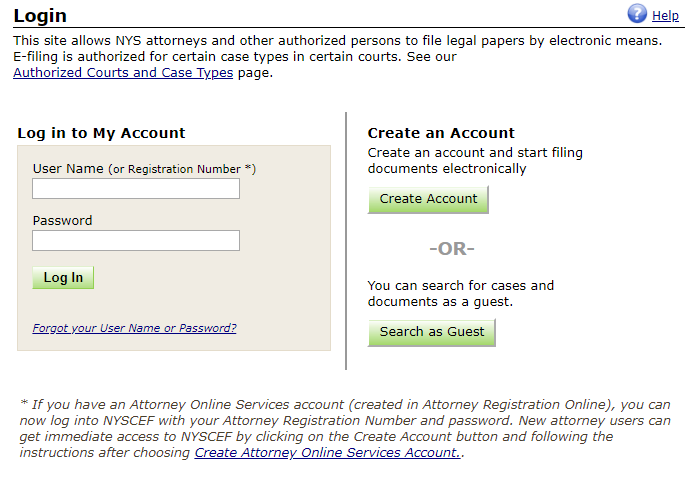
The Create Account button on the Login page will direct you to the Create Account page described above. If you do not have a user ID
and password, you can still search through NYSCEF cases by choosing Search as Guest in the lower right-hand corner of the screen. For
more information on case searches, refer to Sections My Case Searches and
Public Case Searches of this manual.
Back to Table of Contents
NYSCEF Features
As you travel through the NYSCEF system, you will note that there are some recurring features designed to make the system easy to use. We hope these features will help you move through the system quickly and easily.
-
The NYSCEF Status Bar

The NYSCEF status bar helps you see exactly where you are in the e-filing process. -
Filing Help
Click on the "Help" icon whenever you need assistance on a particular screen and you will receive screen-specific pointers. -
Case Summary
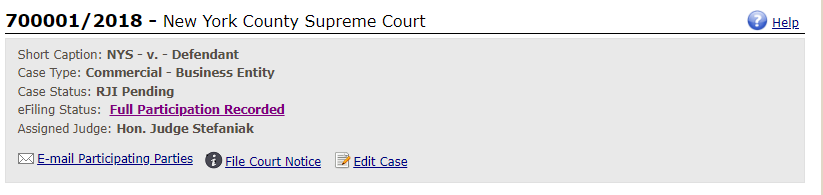
As you move from screen to screen, a case summary often appears at the top of your screen displaying the information you already have entered. If you note that an item is incorrect you can always return to the previous screen by clicking the Previous link at the top of the page or the Previous button at the bottom. -
Links to additional help and resources
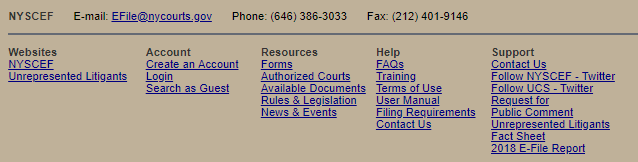
Additional help and resource links prominently display on the bottom of every screen in the application. From these links you can access NYSCEF forms, review the rules governing e-filing and so much more. -
Helpful Information

At various points in the system, you will find helpful information that often will provide a link to additional information on the topic.
Back to Table of Contents
Starting a New Case
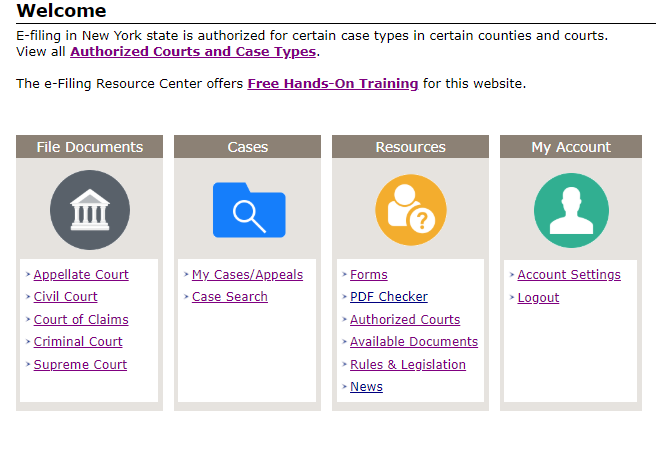
Once you have logged in, you will be given a menu of options for filing documents, searching cases, resources, and account settings.
-
Select a Court
Legislation allows the Chief Administrative Judge to designate by administrative order the courts and counties in which electronic filing is authorized. Click here to view the most recent administrative order, which includes a chart showing the courts and counties presently participating in the consensual and mandatory programs. The menu on the Select a Court page will include all currently active e-filing courts.
After selecting the type of court, you will be able to choose from a list of county courts or district courts. (Though the NYSCEF homepage displays separate links for all five courts, they all share the same NYSCEF screens.)
Follow these steps to select the court in which you would like to commence an action: First, place the cursor on the court you wish to select and click to highlight that court in dark blue. Second, click the Next button.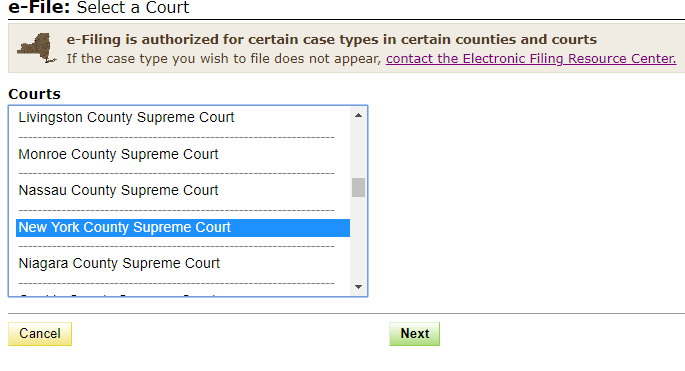
-
Select a Case Type
Different types of cases can be electronically filed in different courts. When you select your court, the case types that can be electronically filed in that court will appear on the Select a Case Type screen. When you have completed the form, click "Next".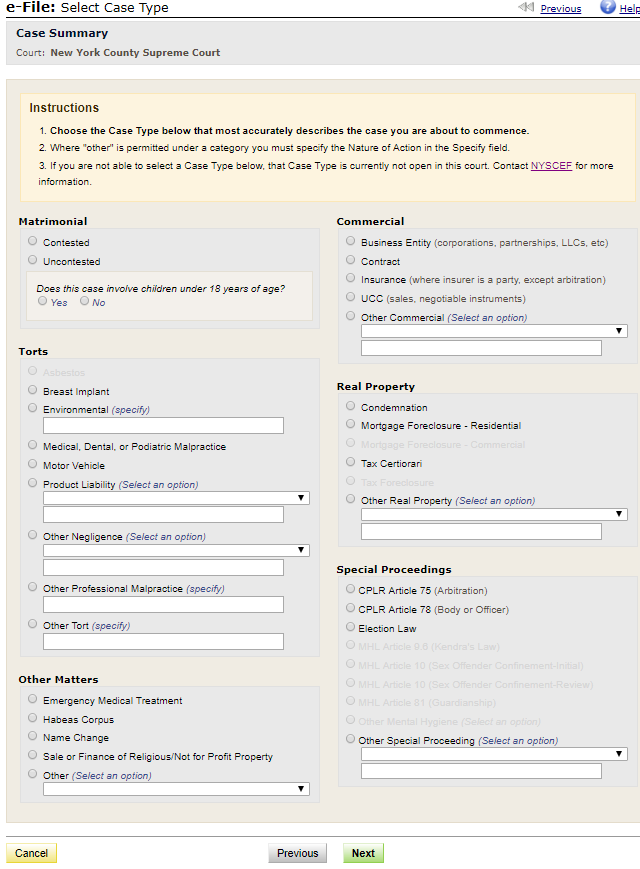
-
Adding Parties
You must enter into the NYSCEF system all parties to the action you are commencing exactly as they appear on your commencement document. If you use "et al" or "et ano", your document will be rejected (Section Rejection and Return for Correction, below).
To enter your plaintiffs or petitioners, type the name of the first plaintiff or petitioner that appears on your commencement document. If that party is an individual, complete the fields provided for first, middle, last name, and suffix. If a party is a business or organization, complete the field provided for Business/Organization name. The screen allows you to enter up to five plaintiffs/petitioners. If your case has more than five, click the Add More Plaintiffs/Petitioners button at the bottom of that box.
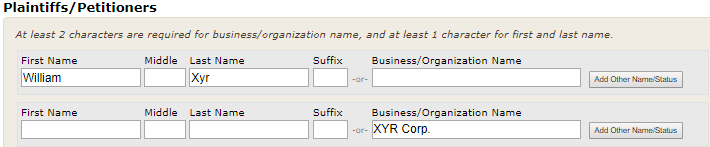
Once you have entered all plaintiffs or petitioners exactly as they appear on your commencement document, use the scroll bar to scroll down the page and enter defendants or respondents by typing the names of each in the proper fields as you did for plaintiffs/petitioners. The screen allows you to enter up to five defendants/respondents. If your case has more than five, click the Add More Defendants/Respondents button at the bottom of that box.
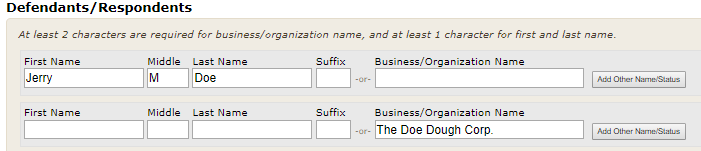
Once you have entered all defendants or respondents as they appear on your commencement document, use the scroll bar to scroll down to the bottom of the page and click the Next button.
Note: In order to move forward with the filing, a defendant/respondent must be entered even if no such party exists in the actual case. If commencing a non-adversarial case, enter "N/A" in the Business/Organization field. -
Entering Other Name or Status
If a party has another name or status, the NYSCEF system provides you with the ability to enter it into your caption.
When entering another name or status, be sure to include the connecting language as it appears in the caption on your commencement paper. For example, you should enter "aka Joey Smith" and not simply "Joey Smith" or "dba Smith Co." and not "Smith Co."
Follow these steps to enter the other name or status: First, if your party has another name or status, click the Add Other Name/Status button on the line where you have entered the party's name. A field will appear that allows you to add the party's other name or status. Be sure to include all connecting language as it appears in the caption.
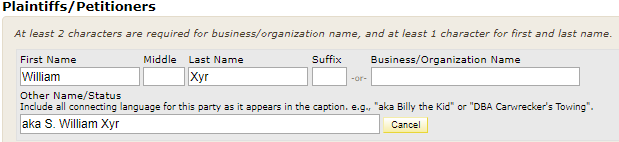
Once you have entered all parties as they appear on your commencement document, use the scroll bar to scroll down to the bottom of the page and click the Next button. -
Verfiy Full Caption
Review each party in the caption to be sure that the caption you have entered matches the caption on your commencement document. The Compare Caption box, shown below, provides four ways to edit your caption.
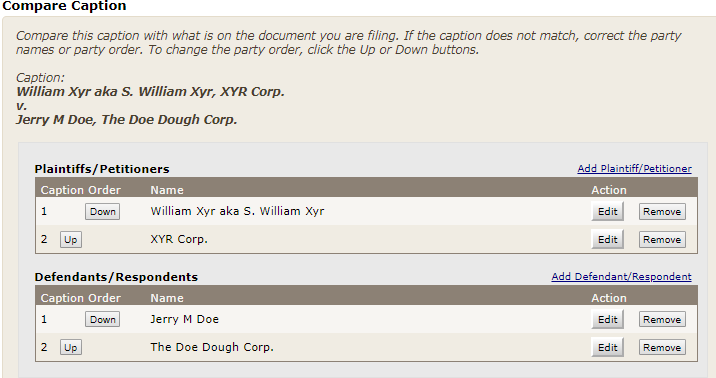
The "Add Plaintiff/Petitioner" and the "Add Defendant/Respondent" links allow you to add a party you may have forgotten to include. The Add Party screen that opens after clicking these links requires you to identify the party's role, supply the party's name, and, if necessary, enter the party's other name/status.
If you need to remove a party, click the Remove button next to that party's name and the party will be removed.
If you have entered the parties' names correctly, but in the wrong order, you may use the Up and Down buttons to change the order.
If you need to edit a party's name (for example, to correct a misspelling), click the Edit button beside that party's name. -
Editing a Party
After clicking the Edit button, you will be directed to the Edit Party screen on which you can edit your party. Just follow the steps described below:
All parties previously entered on the Add Parties screen appear on the Edit Party screen. However, the field in the Party Role drop down will display information for the party selected for editing on the Verify Full Caption screen.
You may change the party's role by clicking the down arrow and choosing the party's new role.
You may edit the party's name by supplying the correct information in the party name fields. You also may add to or change the party's other name or status.
Once you have completed your edits, click the Save button and you will return to the Verify Full Caption screen.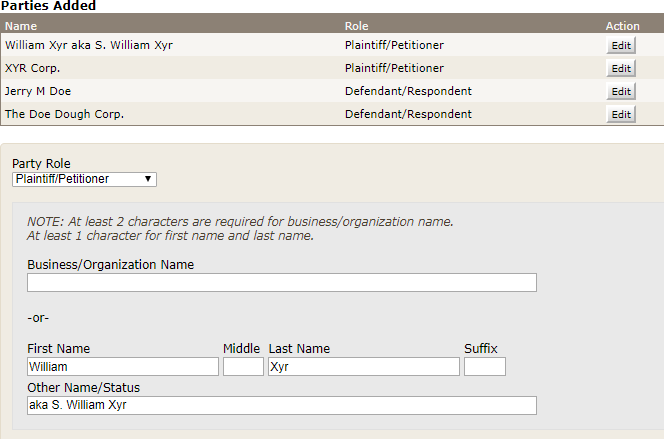
-
Adding a Commencement Document
Once you have verified your full caption, you will be directed to the Add Documents screen.
You will not be able to proceed unless the document you are submitting is in Portable Document Format (a "PDF"), so be sure that you have converted your document to a PDF or scanned your document in as a PDF before you complete this screen. NYSCEF contains a PDF Checker utility that allows you to validate the PDF documents you intend to e-file before upload. You may validate your documents by clicking the PDF Checker button on the NYSCEF Welcome page or by clicking the "Check your PDFs now" link on the Add Documents page:
Check PDF page will open that allows you to test as many as five documents to ensure they are not encrypted, password-protected, or contain JavaScript or other active scripts. The "NYSCEF Document Requirements" link accesses an explanation of document attributes now required by NYSCEF rules. For example, the rules now require that documents conform to PDF/A specifications and that they be text searchable. In addition, there are certain substantive decisions you will need to make when completing the Add Documents page.
RJIs: Unless a RJI already has been filed in the case, the following box will appear on the Add Documents screen when filing as an attorney:

If your filing is to include a RJI, you must click the Yes circle. You may, later in the filing process, allow NYSCEF to generate a RJI from the information entered during this filing or upload your own RJI. (See Adding RJI, below.)
Adding Commencement Document cont'd.
Once the document you plan to submit is in PDF/A format and you have answered the question regarding the RJI, you are ready to complete the Commencement Document portion of the Add Documents page as follows:
First select the type of commencement document you intend to file from the Document Type drop down menu. Next, attach your commencement document, in PDF/A format, either by listing the document's file path or by clicking the Browse button and locating the document on your computer. Next, you may, if appropriate, add additional document information and/or special instructions related to the document in the fields provided. (Adding this type of information is less likely for initial filings than for subsequent filings, such as motions.)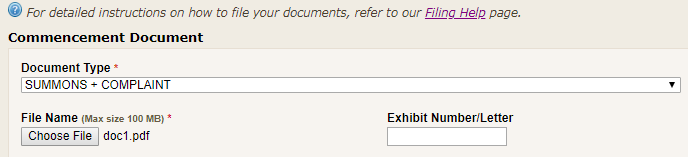
Document Security
NYSCEF document screens have been updated to comply with the new redaction rules for Social Security Numbers and Confidential Personal Information ("CPI") as provided in 22 NYCRR § 202.5(e).
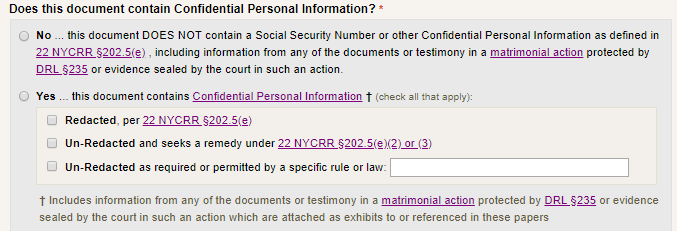
The screen appears with a pre-selected option stating that the document does not contain a Social Security Number or any CPI as defined by the rule. If the document contains such information, you must click the appropriate box (or boxes). If you indicate that a document contains a Social Security Number or unredacted CPI, the system will automatically restrict on-line access to the document to all persons except the parties and counsel in the case.
Accompanying Documents
When adding an accompanying document, such as an exhibit, to your commencement document, follow these steps:
First select the type of document you intend to accompany your commencement document from the Document Type drop down menu. Remember, this drop down menu is much more extensive than the drop down menu for commencement documents. Next, attach your accompanying document, in PDF/A format, either by listing the document's file path or by clicking the Browse button and locating the document on your computer. Next, you must identify any attached exhibit by letter or number and you must briefly describe the exhibit in the Additional Document Information field. You also may supply additional document information and/or special instructions related to the accompanying document in the fields provided. Finally, as explained above, you must select the appropriate Document Security options for the accompanying document(s).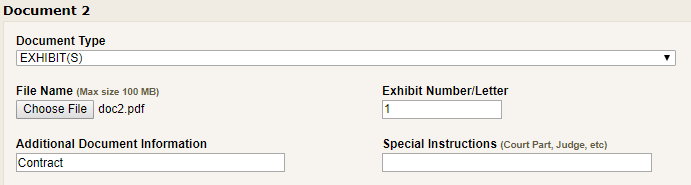
Note: The option to attach an accompanying document to the commencement documents has been removed. Multiple documents may still be uploaded simultaneously, but each will now receive its own document number in NYSCEF rather than a "sub-number" (e.g., 1-1)
If you need to add more documents than the screen accommodates, click the Add More Documents button near the bottom of the screen:
Once all documents have been added, scroll to the bottom of the screen and click the Next button.
Adding RJI
If you stated on the Add Documents page that you will file a RJI along with your commencement document, you will later be presented with the option of allowing NYSCEF to generate a PDF of your RJI or uploading your own RJI. In either case, you will be directed to an Add RJI Information page.
This page, which is too long to reproduce here in a single image, first seeks information about the case:
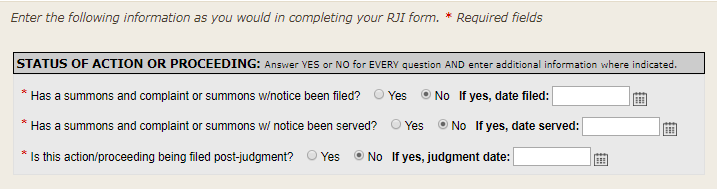
next, the nature of the requested judicial intervention and whether it requests a Commercial Division assignment: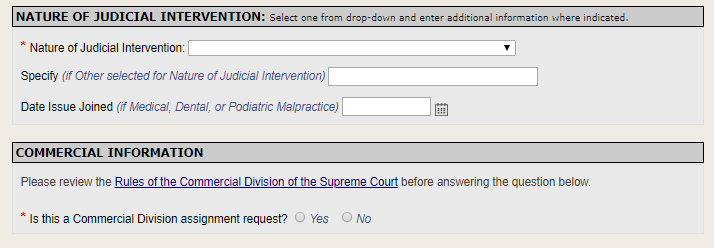
next, information about related cases:
information about represented parties:
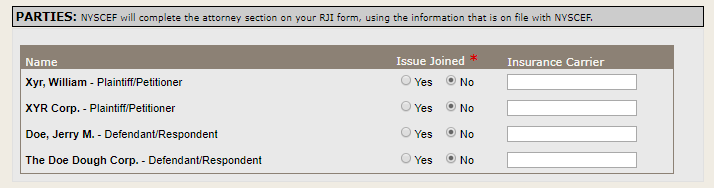
and finally, information about parties currently without any representation on file: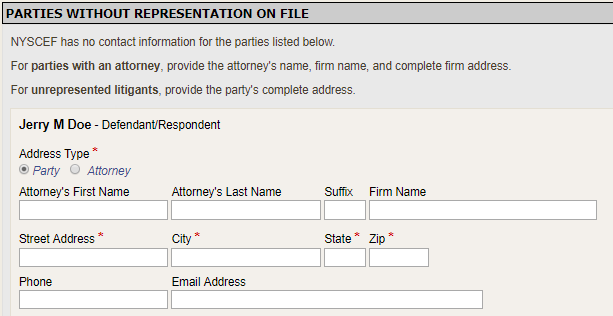
Note that these informational sections of this page display several required fields (marked with red asterisks). The page then gives you the option to upload a RJI or to have NYSCEF create the RJI from the information provided: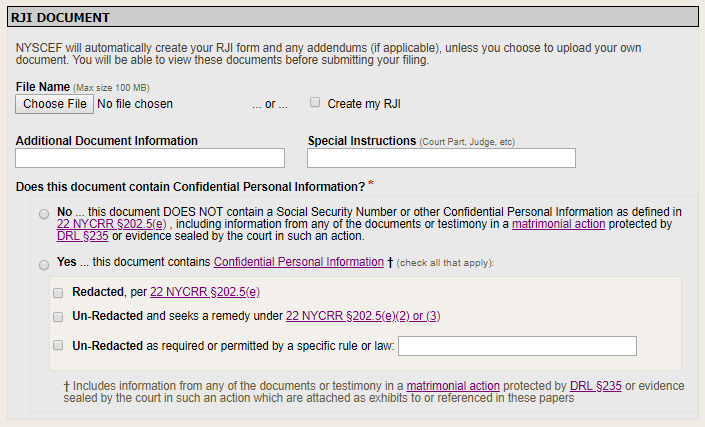
Below these options are the Document Security statements (explained above), which relate to the content of the RJI, and the standard RJI affirmation:
-
Paying for your E-Filing
Before you begin the payment process, you should review the list of filing fees to be sure that they are in order: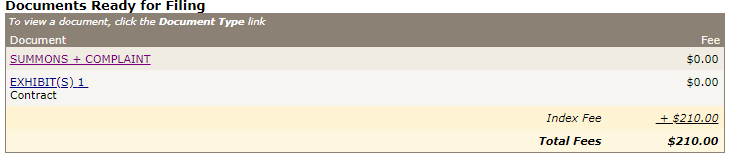
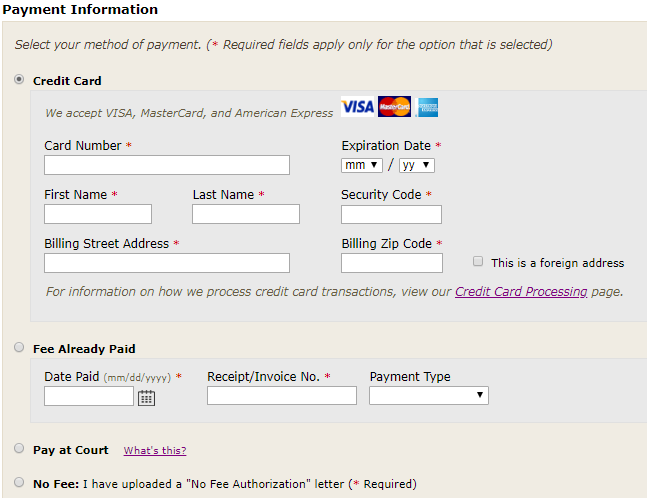
Once you have confirmed that the fees calculated by the system are in order, you will need to choose your payment method. Primary payment methods are by credit card or bank card. Payment at court is available in some counties but not others, as NYSCEF rules allow individual County Clerks to discontinue this payment method. Additional methods of payment, such as debits to a debit account maintained with the County Clerk, may be available in certain counties. The payment screen will display options for all available payment methods in the particular county where you are filing.
Note: If you pay by credit or bank card, your document is filed as soon as it is acknowledged by the NYSCEF system. However, if you choose to pay at court (where available), your document is not filed until that payment is made. Choose your payment method by clicking the button to the left of the desired payment method.
Note: When paying by credit card, be sure to complete all fields. If the address and zip code entered in the NYSCEF system do not match the address and zip code on the billing statement for the credit card presented, your payment will be declined, and your document will not be filed. Instead, you will need to edit your credit card information and attempt to file your documents again.
If you choose "Pay at Court" (where available) for your payment method, you must bring your payment to the County Clerk's office. Your document will not be filed until you have paid at the County Clerk's office.
If you choose Fee Already Paid, be sure to indicate the date paid, the payment method, and the receipt or invoice number in the appropriate fields.
If you choose No Fee, you must have submitted a No Fee Authorization Letter as one of your documents in order to complete the payment process.
If necessary, enter any comments about your payment by typing them in the field provided:
Once all of your payment information has been entered, click the Next button. -
Review Your Filing
The NYSCEF system allows you to review your filing prior to submitting it. Start by reviewing the case information and caption. If you need to edit any of this information, simply click on the "Edit Court and Case Type" or the "Edit Caption" link below: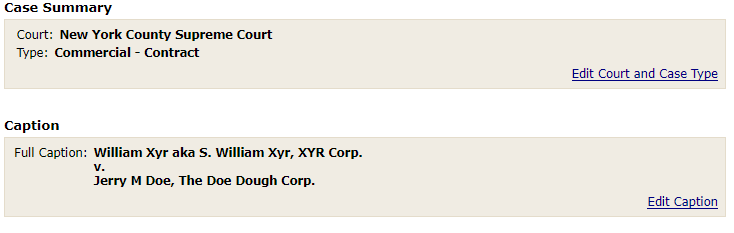
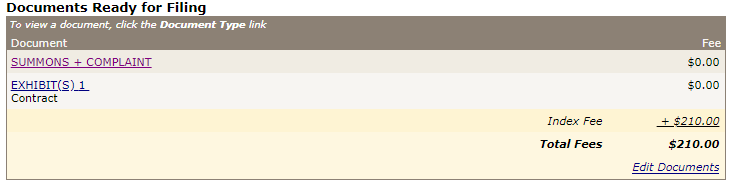
Next, review the document list. If you want to view the image of your document, choose the document name, such as "Summons + Complaint", by clicking on it. An image of your document will appear in a pop-up window. If you need to edit your documents, click the "Edit Documents" link, below:
Review your payment details. If any payment details are incorrect, choose the "Edit Payment" link, below: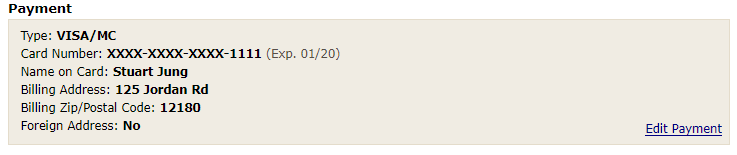
The review screen also includes a box where you may enter an internal file number for the case. In most instances, this internal file number may be visible only to you, not to the other parties in the case:
Insert a check mark to the left of the Filing Acknowledgment by placing your cursor on the box and clicking. You should be familiar with the provisions of GBL &script; 399-ddd and 22 NYCRR &script; 202.5(e) prior to making this acknowledgment.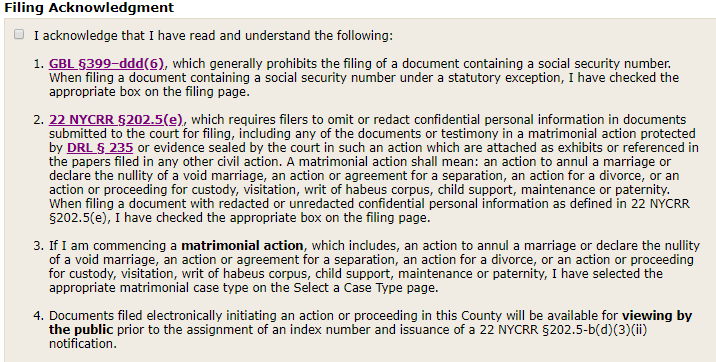
Once you have completed your review and confirmed all items are correct, click the File Documents button. -
Confirmation of Filing
Once you have clicked the File Documents button, you will arrive at a screen that confirms that your electronically filed documents were received. If you are paying by credit card, this screen also will confirm that your credit card has been charged: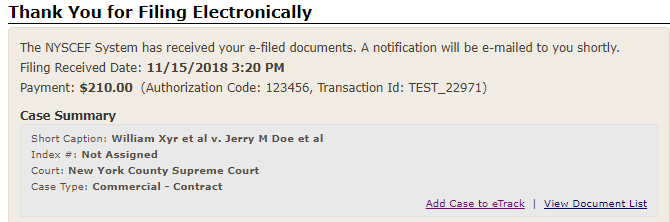
The confirmation screen also provides a detailed list of the documents you have filed. You can click on the document name, which serves as a link to an image of the document: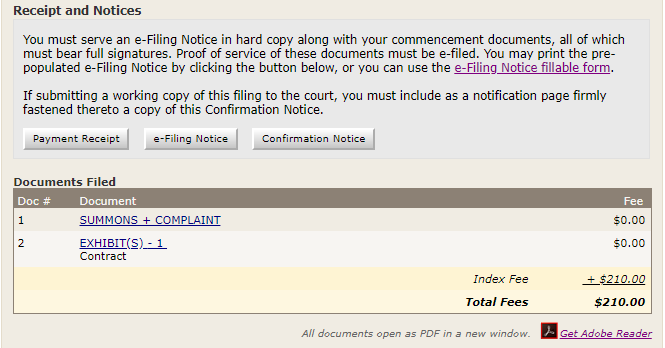
The Payment Receipt is optional and provided for your convenience. If you have chosen to "Pay at Court" in a county that offers this payment option, it would be helpful to have this receipt accompany your payment to the Office of the County Clerk. The appropriate e-Filing Notice must be served in hard copy along with the commencement documents in any e-filed case. The specific language in the notice depends on whether the case is mandatory or consensual. They NYSCEF system automatically generates the correct notice.
The Confirmation Notice must be firmly affixed to any working copy submission to the court and can also be stored as confirmation of your filing for your own records. -
Notifications
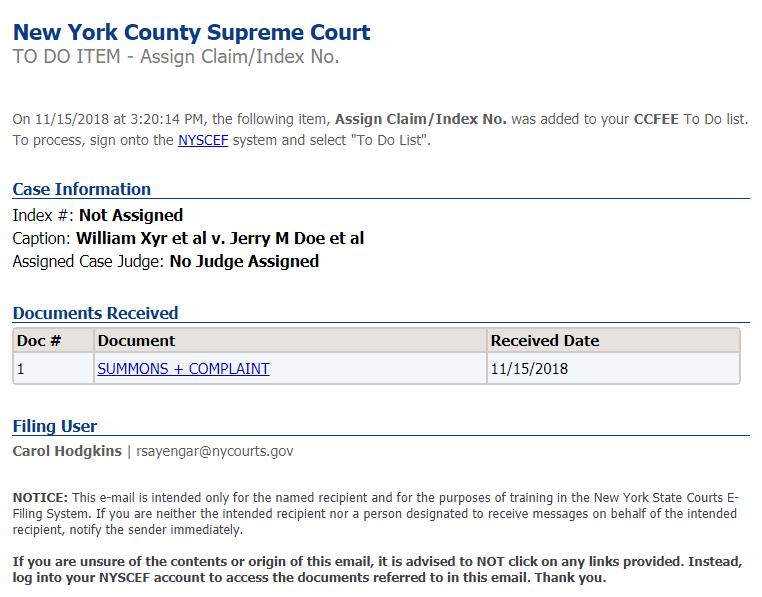
Shortly after you have reached the confirmation page in the filing process, an email notification confirming the filing of your documents will be sent to you. A sample e-mail follows:
-
Issuance of Index or Claim Number
Once your commencement document has been filed, it will be reviewed by the County Clerk. An index or claim number is not automatically assigned by the NYSCEF system. Instead, the appropriate staffer will review your filing. If all is in order, your filing will be accepted and an index or claim number will be issued. If there is a problem with your filing, it may be rejected (if it falls within Uniform Rule 202.5(d)(1)) or it may be returned to you for correction (see Section Rejection and Return for Correction, below).
Assuming your filing is in order and payment has been received, you will receive an e-mail with your index or claim number that looks like the following: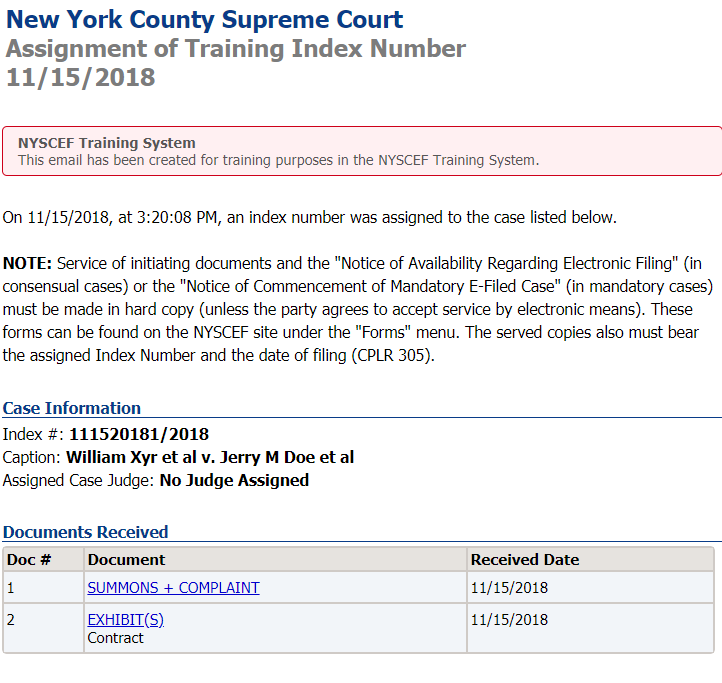
-
Service of Commencment Papers
Commencement papers must be served in hard copy pursuant to the Civil Practice Law and Rules together with the appropriate Notice of Electronic Filing.
If you are commencing a case in NYSCEF that is subject to consensual electronic filing, you must serve along with your commencement documents the Notice of Electronic Filing that advises all other parties of your desire that this case proceed as an electronically filed case.
If you are commencing a case in NYSCEF that is subject to mandatory electronic filing, you must serve along with your commencement documents the Notice of Electronic Filing that notifies all other parties that electronic filing in this case is mandatory.
As stated in the Confirmation of Filing section, above, the correct form will automatically be generated when you click the E-Filing Notice button on the confirmation screen. You may also access these forms by clicking on the "Forms" link in the Resources section of the NYSCEF system.
There is a limited exception to the hard copy service requirement when the defendant/respondent is a registered NYSCEF user, consents to the use of e-filing in the case and agrees to accept electronic service of the initiating documents.
Any affirmation or affidavit of service should be electronically filed in NYSCEF by choosing Affirmation/Affidavit of Service from the document list.
Note: Your affirmation or affidavit of service should reference service of not only the commencement papers, but also the Notice of Electronic Filing.
Back to Table of Contents
Participating in Electronic Filing
Consent is required to participate in cases subject to consensual e-filing. Although any party to a consensual case may file documents
electronically without the consent of any other party, electronic service via NYSCEF may only occur between or among consenting parties.
By starting an action in the NYSCEF system, the filing user has consented to e-filing in that action. Commencement documents
served upon defendants/respondents must include the Notice of Electronic Filing.
In order to consent to e-filing in a
consensual case, you need to have a valid Live System user name and password. Enter www.nycourts.gov/efile
into your web browser and you will arrive at the NYSCEF Welcome page. Choose the Supreme Court Live System by clicking the appropriate
link. The Login page will open, where you will enter your Live System user ID and password. (The login process is described in
Section Getting Started, above.) You will arrive at the NYSCEF home page, where you have a number of
options. To record your consent to e-filing in an existing case, click the court, then the "Consent/Represent" link shown below:
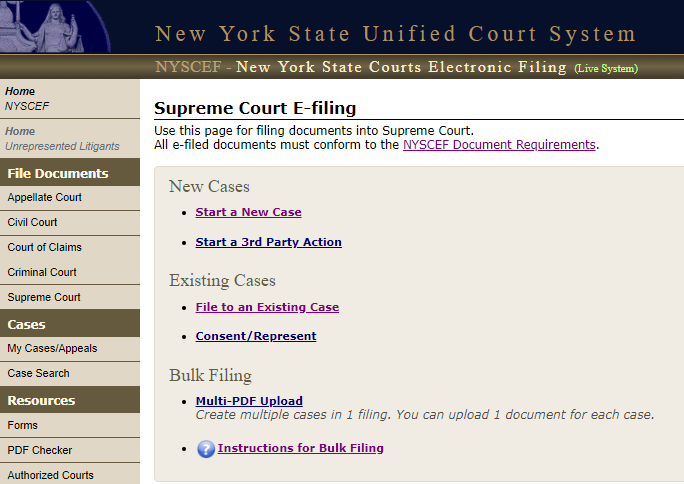
The Consent/Represent screen will open. Here you will enter the index or
claim number of the case in which you wish to record your consent and, in the drop down menu, choose the court in which the case is
pending: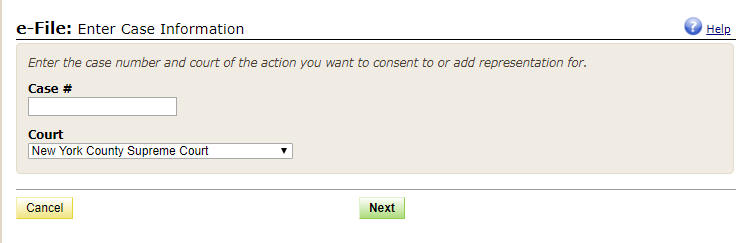
After supplying the information on this screen, click the
Next button. You will then proceed to the Select Parties screen, on which you will be able to identify each party for whom you are
consenting and on whose behalf you will be filing.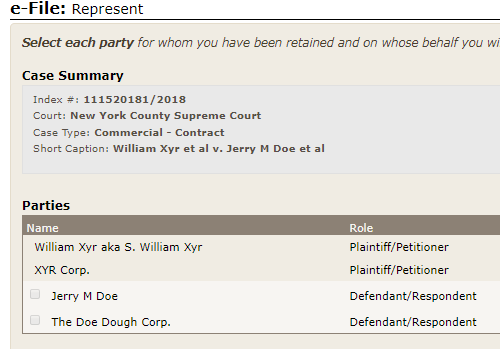
Select the party or
parties for whom you are consenting and filing on behalf of by placing the cursor in the box directly to the left and clicking so that
a check mark appears.
Caution: Before indicating your consent in the NYSCEF system you must be fully familiar
with the rules governing the e-filing process. By signing in with your User Name and indicating consent to e-filing, you are agreeing to
be bound by the e-filing rules as well as rules governing access to documents in any authorized e-filing program.
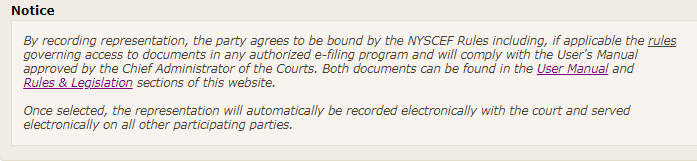
If you need to review the e-filing rules, you may click the "Rules &
Legislation" link that appears in the gray Notice box and at the bottom of every NYSCEF screen.
Once you have indicated all
parties for whom you are consenting to e-filing, click the Consent button. An e-mail notification of your consent will be sent to you
and all other parties who have consented in the case.
Consent to e-filing does not constitute an appearance in the
case under CPLR 320.
Consent is not required in a case subject to mandatory e-filing. The plaintiff/petitioner must
commence the case by filing the commencement documents electronically with the County Clerk. The appropriate Notice of Electronic Filing
must accompany commencement documents served on the defendants/respondents.
Parties served in a mandatory case do not record
their consent; instead, they record their representation. Parties wishing to record their representation follow the same consent
procedure noted above. However, since the index number they enter will identify the case as subject to mandatory e-filing, the subsequent
Consent/Representation screen will be tailored to allow these users to identify who they are representing and filing on behalf of.
Note on non-participation: In a consensual case, the Rules provide that a party served with a Notice of
Electronic Filing must file and serve on all other parties "either a consent or a declination of consent." There is no specific form for
a declination of consent; a letter stating that the party withholds consent will suffice. Note, however, that unrepresented parties are
exempt from e-filing - unless they wish to participate - and are not required to respond to a Notice.
In a mandatory case,
attorneys who do not wish to participate must file a Notice of Opt-Out from Participation in Action Subject to Mandatory Electronic
Filing with the County Clerk. Unrepresented parties are exempt from e-filing even in mandatory actions - unless they wish to participate
- and are not required to file an opt-out form.
What happens if all parties to your action do not participate in e-filing?
Even if all other parties to your case do not participate in e-filing, the case still may proceed as a NYSCEF matter. However, you will
need to serve all non-participating parties in hard copy.
All of your filings, including any Affirmation/Affidavit of Service
for documents served in hard copy, should still be made electronically through the NYSCEF System.
In cases in which some
parties are filing via NYSCEF and other parties are filing in hard copy, the NYSCEF docket may not be complete. However, the clerk and
the court will make every effort to complete the NYSCEF docket by scanning and filing hard copy submissions.
Back to Table of Contents
Filing Subsequent Papers, Including Motions
-
Parties
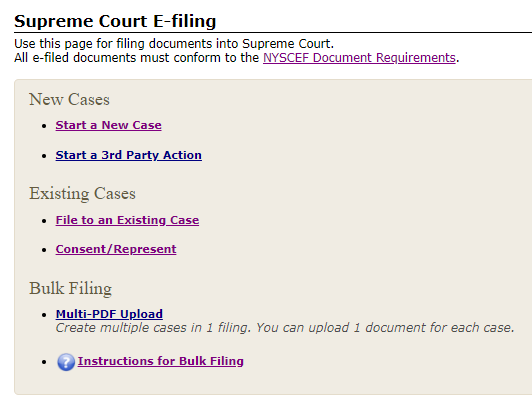
An attorney or party who has commenced an action via the NYSCEF system or an attorney or party who has consented to electronic filing in a consensual case or recorded representation in a mandatory case can electronically file a document at any time. To file a document in an existing action, log in and choose to "File to Existing Case" link shown below:
On the next screen, you will need to enter the index or claim number and then, from the drop-down menu, select the appropriate court. In the area below, indicate whether the document being filed is a motion or a non-motion document. Please be sure to read each choice carefully and select your choice by clicking the circle directly to the left. You may also need to indicate if 1) you are filing an unredacted document to be attached to a previously filed redacted document as permitted by court rule; or 2) you are filing a document as a nonparty to the case.
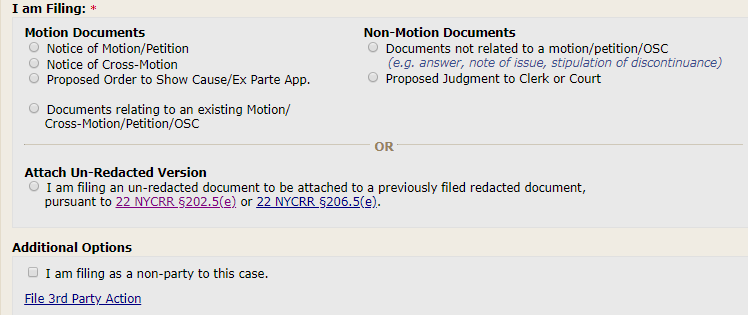
Once you have entered the information to identify your case and indicated the general type of document being filed, click on the Next button.
If you are filing a non-motion document, you will proceed through the same Add Documents and Review Your Filing screens that you encounter when starting a case in the NYSCEF system (see Section Starting a New Case). If you are submitting a document that requires a fee, you will proceed to the Payment Information page (see Section Starting a New Case (H)). If there is no fee required, you will proceed to the page confirming your filing (see Section Starting a New Case (J)).
If you are filing a motion, after completing the Add Document screen, you will proceed to an Add Motion Information screen. Here you will select the main relief sought by your motion from a drop-down menu and, if necessary, any secondary relief sought in a separate drop-down.
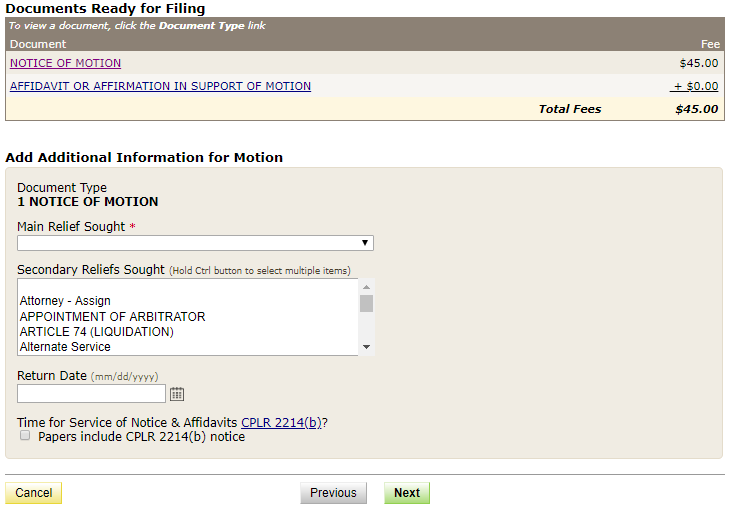
Below the drop-down menus, you will fill in the return date of the motion and, if the papers include a CPLR 2214(b) notice, check the box.
Once the additional information for your motion is complete, click on the Next button. You will be given the opportunity to review your filing and, if you are submitting a document that requires a fee, you will proceed to the Payment Information page (see Section Starting a New Case (H)). After paying any required fee, you will proceed to the page confirming your filing (see Section Starting a New Case (J)).
Open your Confirmation Notice (a portion of which appears below) to view a list of e-mail notifications sent by the NYSCEF system and a listing of any parties to the case who are not participating in e-filing (and therefore must be served in hard copy).
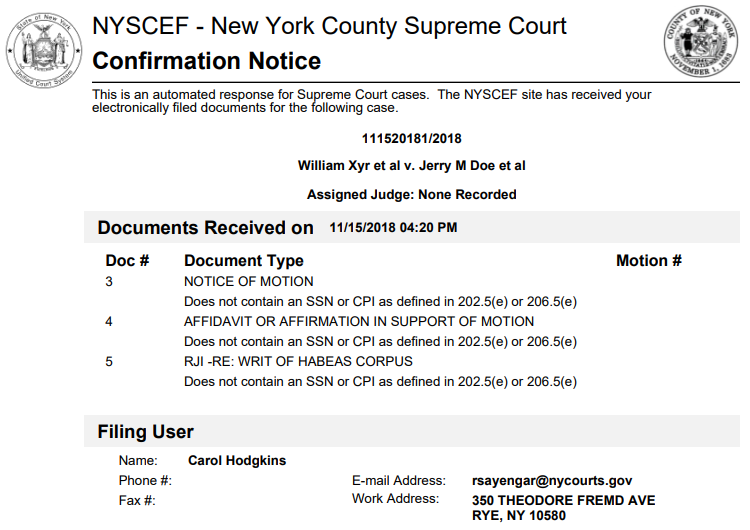
In addition, a notification of receipt will be e-mailed to you and all of the other participating parties in your case. The notification will be similar to the notice received when a case is commenced (see Section Starting a New Case (K)).
If the document you have submitted bears a fee, you will subsequently receive an e-mail notification when this fee is processed by the County Clerk. And if the Court Clerk also takes action on your filing, such as assigning a motion number or assigning a judge, an e-mail notification will issue to you confirming the action taken.
Each separate motion will be given a motion number in NYSCEF. In some counties, each cross-motion is also given a motion number.
If you are filing documents in connection with a motion that has been issued a motion number, the NYSCEF System will ask you to identify the number of the motion your documents are connected to. Properly grouping your motion filings in the NYSCEF system also allows motion documents to be grouped together in appropriate folders in the electronic docket. -
Non-Parties
Non-parties may file to an existing case. As with parties, you must log in, choose "File to an Existing Case", then enter the case information and indicate whether the document being filed is a motion or non-motion document. Then, in the Additional Options section, you must check the box to indicate that you are filing as a non-party:
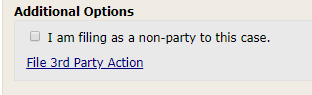
When you click Next, you will open an Add a Non-Party page where you must enter the name of the non-party, whether it is a business/organization or an individual:
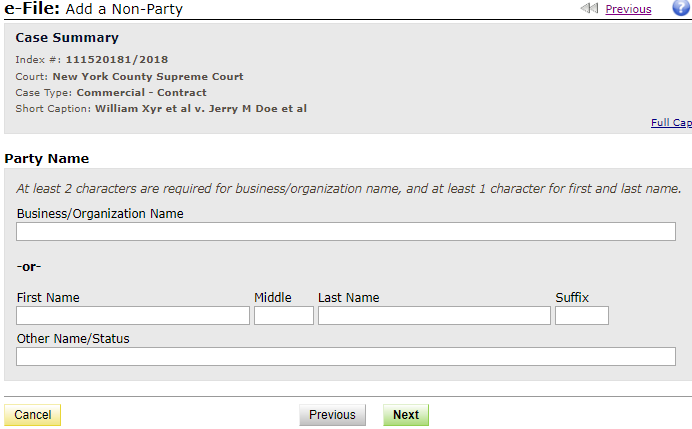
You will then proceed through the Add Documents and Payment Information screens that you encounter when starting a case in the NYSCEF system (see Section Starting a New Case ).
Note: As a non-party filer, you must have a valid User Name and Password to file to the case. If you are an attorney admitted pro hac vice, you must obtain a User Name and Password specific to the case (see Section Getting Started). Also, as a non-party filer, you will not have access to any secure (if filed as such prior to April 15, 2013) or sealed documents in the case docket.
Back to Table of Contents
E-Filing Third-Party Actions
A defendant in an action filed in the NYSCEF system may electronically commence a third-party action. To commence a third-party action,
log in and choose the "Start 3rd Party Action" link shown below: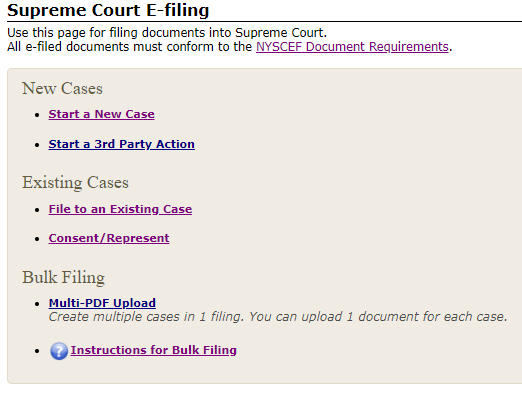
You will need to enter case identifying information, which consists of the index/claim number of the main case and the court in which it
is pending.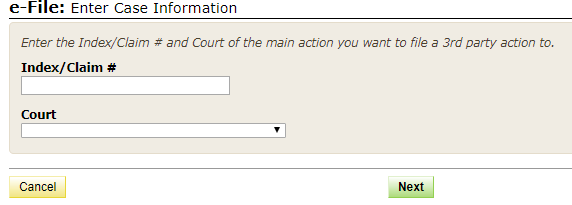
After you enter the information and click Next, the Select
Parties screen will open. Select the third-party plaintiff/petitioner from the list of defendant/respondents named in the main case by
checking the appropriate box, then click the Represent button. Note that by doing so, you agree to be bound by the NYSCEF rules,
including rules governing access to documents.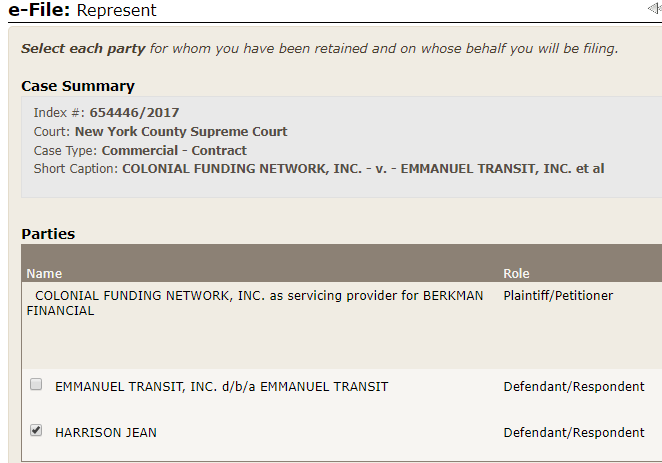
Next, the Add Parties
screen will open. Here enter the names of the third-party defendants/respondents in the appropriate fields below. When you are finished
entering the information, click Next.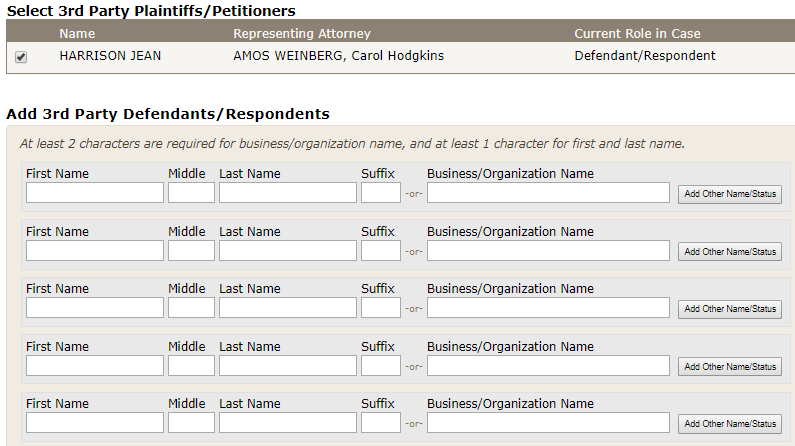
The Add Documents screen opens.
Here the only main document type available is a third-party summons/complaint. After you add the document, you may include Additional
Document Information and Special Instructions in those fields.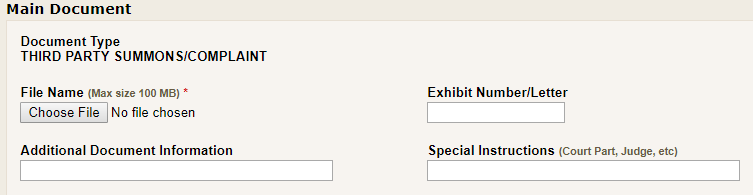
Though not shown in the above image, the page will require you to provide Document Security information (see Section Starting a New
Case(G)).
The next screen shows the index number fee of $210.00 and allows you to add accompanying documents to the filing.
You select the document type from the drop-down and, as on the previous screen, may provide Additional Document Information and Special
Instructions, along with Document Security information.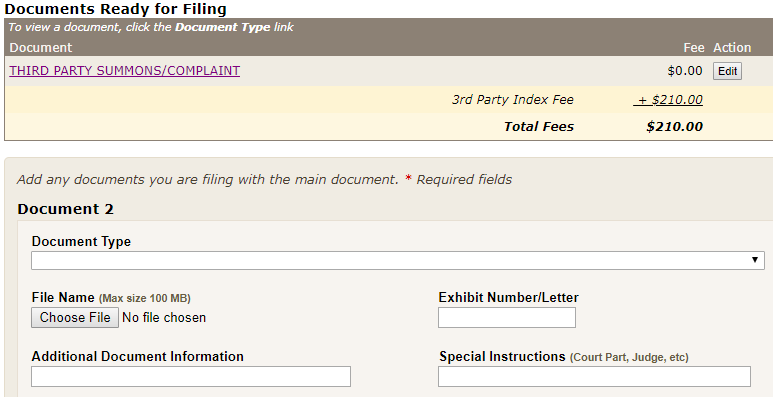
The next screen
is the payment screen, which follows the same process described in Section Starting a New Case(H).
The next screen allows you
to review your filing, including the payment method previously selected. You may add an attorney filing number for your third-party
filing and you must acknowledge familiarity with the provisions of GBL § 399-ddd and NYCRR § 202.5(e).
Click the
File Documents button to file the third-party summons/complaint.
The Thank You screen shows the documents filed and the fee
paid. The e-Filing Notice button will print the appropriate notice that must accompany the hardcopy service of the commencement
documents.
Back to Table of Contents
E-Filing Judgments
To reach the judgment screen, log in and choose "File to Existing Case" as explained in the previous section. Enter the index/claim
number in the box and select the court from the drop-down menu. On the next screen, under Non-Motion Documents, an option for Proposed
Judgment to Clerk or Court will appear.
After selecting this option and clicking the Next button, an Add Documents screen
will open. The screen, tailored to the submission of proposed judgments only, displays a drop-down Document Type menu limited to these
options: Judgment Clerk Default (Proposed); Judgment - to County Clerk (Proposed); Judgment - to Court (Proposed); and Judgment by
Confession (Proposed). (The Judgment by Confession option will not appear in all counties.) Select the correct judgment type from the
drop-down, attach the PDF of the proposed judgment, and fill in the other document criteria as needed. Then click the Next button.
An Add Accompanying Documents screen will open. Here, select any required or optional documents from the drop-down menu,
attach the PDFs of those documents, and enter any document criteria as needed. You also may upload any documents that are related to the
judgment but are not presently part of the NYSCEF record. When you have selected all documents, click the Next button. An Assemble
Judgment Roll screen will open. The Judgment Roll section of the screen will display a list of ALL documents in the e-docket. You may
choose any or all of these documents to be included in the judgment roll by checking the box alongside the document number. A Sort By
drop down allows you to search for certain documents by document type, document number, file date, filer, and motion number.
Caution: You must select at least one document for the judgment roll. Failure to select any documents will result in an
error message. When you have completed selecting documents for the judgment roll, click the Next button.
A Review Your Filing
screen opens, which allows you to edit any of the previously entered information, including the proposed judgment roll, by clicking the
links under Document Type. Remember to enter your internal file number (if any) and to check the Filing Acknowledgment. When you have
confirmed your filing, a payment screen may open, e.g., for a Clerk Default Judgment (see Section Starting a New Case (H)).
After reviewing your filing, or making payment if required, click the File Documents button to file the proposed judgment. A Thank You
page completes the process.
Back to Table of Contents
Rejection and Return for Correction
The clerk reviewing your document in NYSCEF will reject documents with certain types of defects and will return documents with other
types of defects for correction.
An e-filed document will be rejected only for one or more of four reasons set forth in
Uniform Rule 202.5(d)(1).
These reasons include:
- The document lacks an index number;
- The summons, complaint, petition, or judgment contains "et al" or otherwise does not contain a full caption;
- The document sought to be filed with the County Clerk is filed in the wrong court;
- The document is not signed in accordance with section 130-1.1-a of the Rules of the Chief Administrator.
A rejected document is removed from the case docket. An e-mail notification informs both the filer and all participating users that the
document has been removed and the reason for the removal.
An e-filed document may be returned for correction for many
reasons. These reasons may include:
- The document type does not match document submitted;
- Multiple documents must be submitted separately;
- Pages missing/out of order;
- The document is illegible/blank/rotated;
- There is a problem with payment option selected;
- The caption does not match case record;
- Supplementary information is requested;
- Other specified problems with the document.
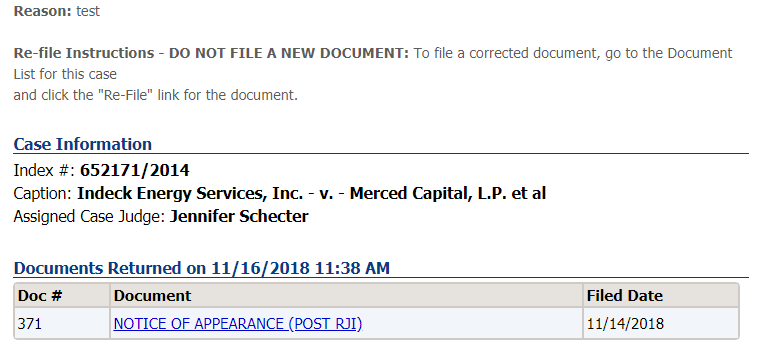
When a document is returned for correction, an e-mail notification informs
the filer of the reason for the correction. The filer is instructed to file the corrected document by clicking the "Re-File" link on
the Document List. The corrected document will retain the document number of the returned document, with a notation that it has been
corrected. The case docket will indicate that the document has been returned and the image of that returned document will not be
available for view in the docket. In addition, the document detail will show the reason the document was returned for correction.
However, if the NYSCEF system served the original filing upon other parties, they will still be able to view the original filing via
a link provided in the service e-mail.
Back to Table of Contents
Service Through NYSCEF
In a consensual case in which other parties have consented to e-filing and in a mandatory case where other parties have recorded their
representation, the NYSCEF system serves filed documents upon these participating parties. Parties who have withheld their consent in a
consensual case, have opted out of a mandatory case must be served in hard copy, or unrepresented parties who have chosen not to
participate in e-filing must be served in hard copy. Service occurs when the notification of receipt of a filing is e-mailed to the user
who has submitted the filing as well as to the primary e-mail (and cc) addresses of all other NYSCEF users who have consented in the
case. This notification identifies each user who has received the notification e-mail. Pursuant to the e-filing rules, transmission of
this notification constitutes service of the document. An affidavit of service does not need to be filed.
Thus, the
act of filing an interlocutory document in the NYSCEF system results in service upon all NYSCEF participants in the case.
However, as set forth in the e-filing rules, service will not be effective if the filing party learns that the transmission did
not reach the e-mail address of any person to be served.
Back to Table of Contents
Converting a Case to NYSCEF
Existing cases with hard copy filings that are eligible for e-filing can be converted to NYSCEF. The method for converting a case is to
complete a Stipulation and Consent to E-Filing, which can be found by clicking the "Forms" link in NYSCEF.
Once all parties
have completed the Stipulation and Consent to E-Filing, it must be provided to the appropriate clerk, who will coordinate the conversion
of your case to NYSCEF.
Once your case has been successfully converted from hard copy to NYSCEF, you will receive
notification that you can record your consent to electronic filing in the NYSCEF system.
A party who wishes to begin
electronically filing in a case commenced in hard copy but has not secured a Stipulation and Consent to E-Filing should contact the
County Clerk or the court in which the case is pending to discuss how to proceed.
Back to Table of Contents
My Case Searches
NYSCEF is not only a system through which documents can be filed. It is also a system through which e-filed documents can be searched and viewed at no cost. Not only can filers search documents filed in cases in which they are e-filing participants, the general public can also search all NYSCEF cases and view any document that has not been sealed, otherwise restricted, or marked secure prior to April 15, 2013 (see Section Starting a New Case (G)).
-
Searching Your Cases: To search your NYSCEF cases, log in to the NYSCEF Live System. To search cases in which you
are an e-filing participant, click on the "My Cases" link shown below:
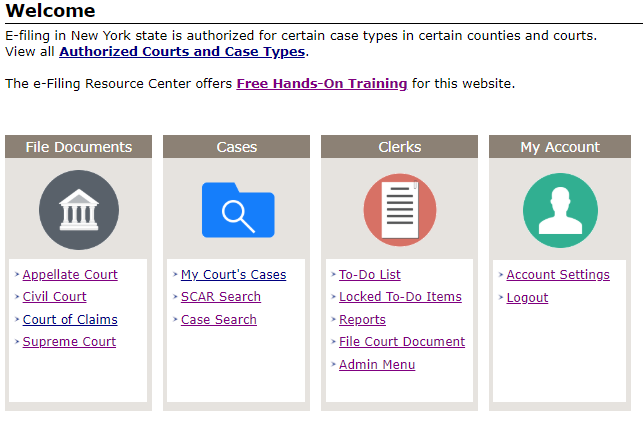
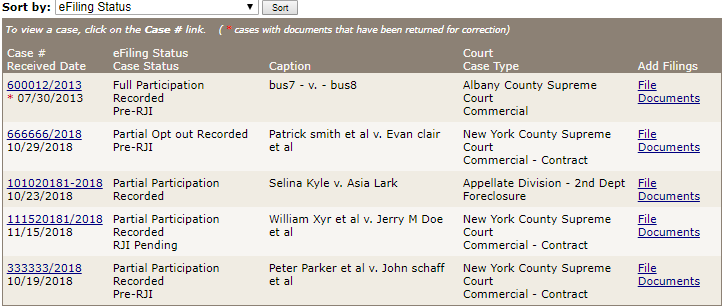
A listing of all the cases in which you are a participant will appear. You may narrow your results by selecting a particular court, case type, or case status from the drop down menus. You may also sort the results by one of the following criteria:- Claim or Index Number
- Case Status
- Caption
- Court
- Case Type
- Recieve Date
- e-Filing Status
-
Viewing a Case Summary: To see additional details about the case, click the link in the column for Index/Claim #.
You will see a Case Summary, which contains basic case details such as the court, case type, index or claim number, and caption. It
will also contain additional details such as the e-filing status of the case and any Assigned Judge:
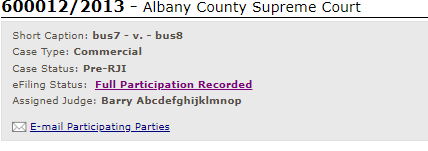
Note that in the bottom left hand corner of the Case Summary box there is an "Email Participating Parties" link. This feature allows you to send an e-mail to all parties in the case who are participating in e-filing. This feature is provided as a courtesy and you do not need to use this link to serve documents in this action. However, if you wish to contact the participating parties for any reason, you can utilize this link. Please note that NYSCEF does not retain any e-mail sent using this link. -
View Document List: Below the Case Summary, you will find the Document List tab displayed. Here you can view a list
of documents filed in the case you are viewing. The box above the list of documents provides various "narrow by" options, including
document type, motion number, filer, and filing date range.
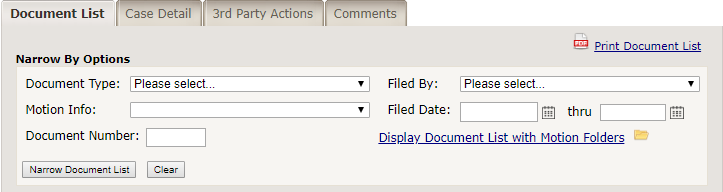
You may gather all documents related to motions into motion folders by clicking the "Show Motion Folders" link. The resulting document list will display the motion folder icon for each motion in the docket by sequence number. By finding a specific motion number in the document list and clicking the "View all documents for this motion" link, you will access a display of all filed documents related to that motion. The Print Document List link displays the entire case docket as a PDF file.
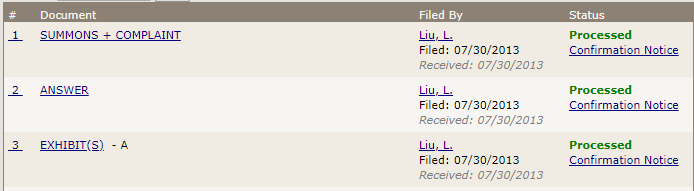
You also may sort the Document List by the following categories:
- Document Number
- Filing User
- Receive Date
- Status
- Type
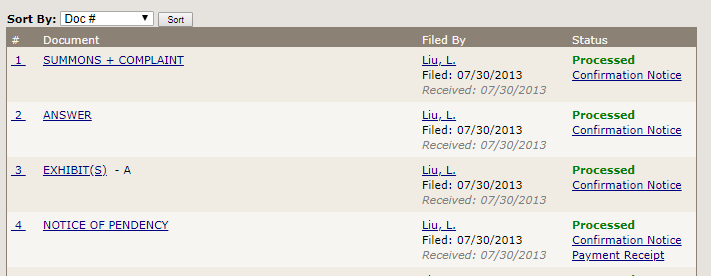
The document list shows the document number, document type, the status of the document, the received date, and the filing user. To view an image of any document appearing on the list, simply click on the document name, such as "SUMMONS + COMPLAINT", and an image of the document will open. However, if the document has been returned for correction, you will not be able to view an image of the document. In addition, links in the far right column allow you to access the Confirmation Notice generated by NYSCEF upon the filing of that document and, if the document was a fee document, the receipt generated by NYSCEF upon the payment of that fee. -
View Document Details
To view additional details about your document, click on the document number to the left of the document name on the Document List tab, as shown below: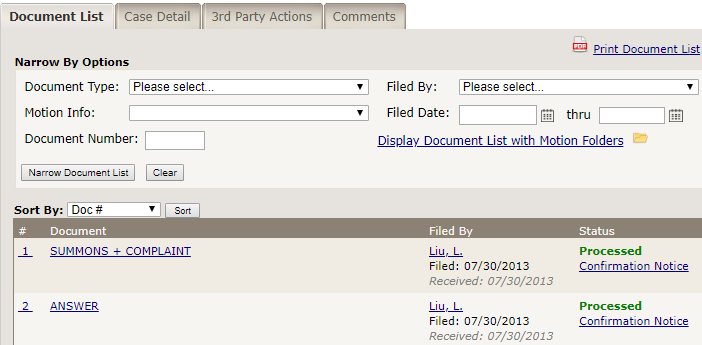
A new Document Detail tab will appear that displays various details about your document.
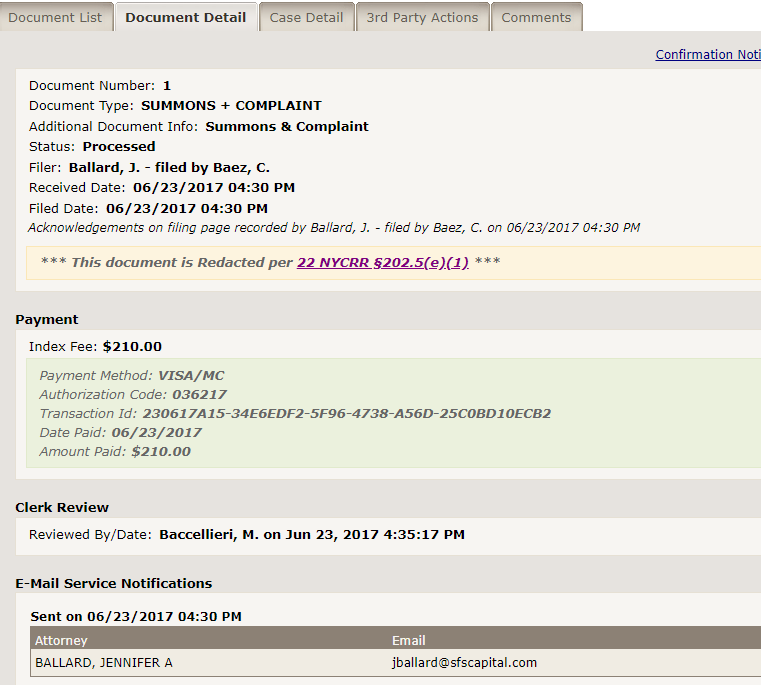
These details include, in the box at the top, filing information about the document; security information, e.g., whether the document is sealed or contains a social security number); payment information (e.g., the amount of the fee and the manner of payment); the results of any court review of the document; and the recipients of e-mail notifications. If the case includes parties who are not participating in e-filing, that fact will be noted with the reminder that any non-participating parties must be served in hard copy.
Also note that the Document Details tab provides an additional way to access the Confirmation Notice for a document. (See also the Document List discussion, above.) If you forget to print your Confirmation Notice when you first file your document and then need to print that Confirmation Notice to firmly affix to a working copy requested by the court, it can be accessed from this tab. -
View Case Details
Below your Case Summary you will find the Case Details tab displayed.
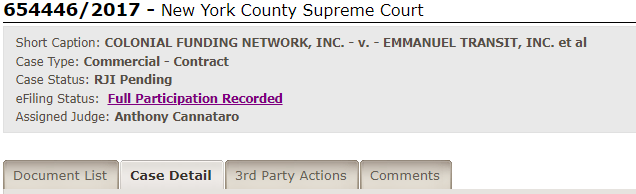
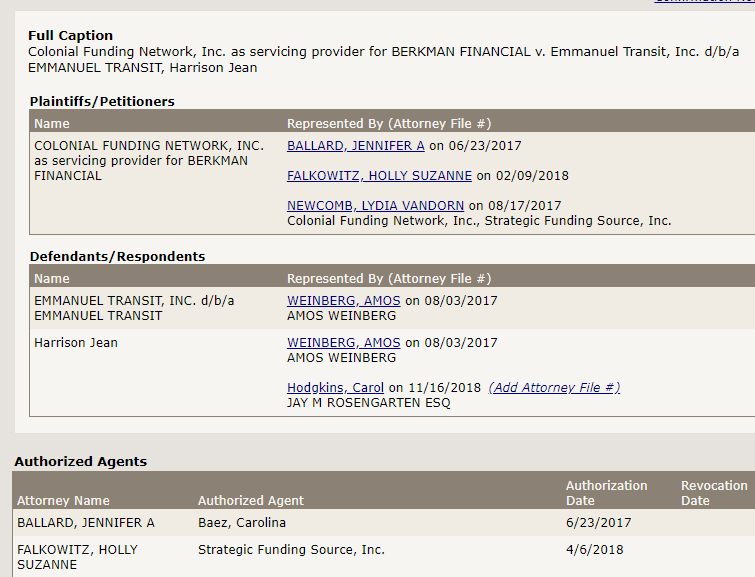
Clicking this tab allows you to view the case caption, the consents recorded for the parties, any non-participating parties, and any authorized agents:
Back to Table of Contents
Public Case Searches
Case searches can be performed by visitors to www.nycourts.gov/efile even if they do not have a User Name and Password. Visitors simply click on the Search as Guest button near the bottom left of the login
page: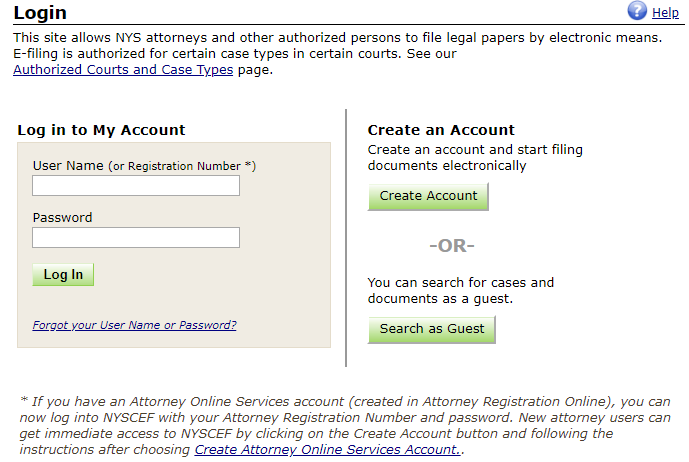
After entering the security code, you will arrive at the Case
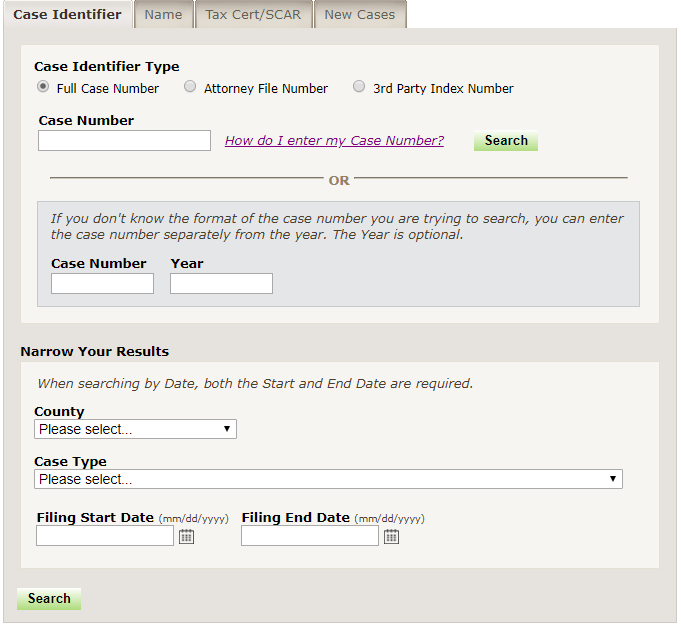
Search page allowing you to search by Case Identifier (the index/claim number, attorney file number, or 3rd party index number):
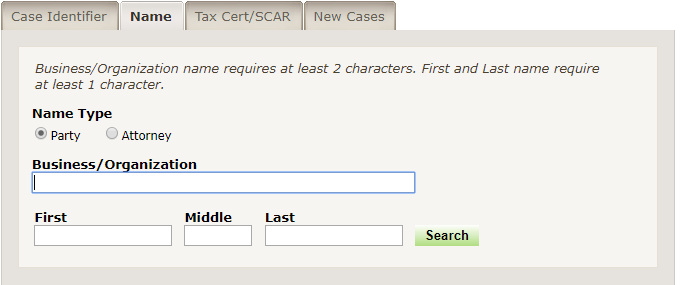
by Name (party or attorney):
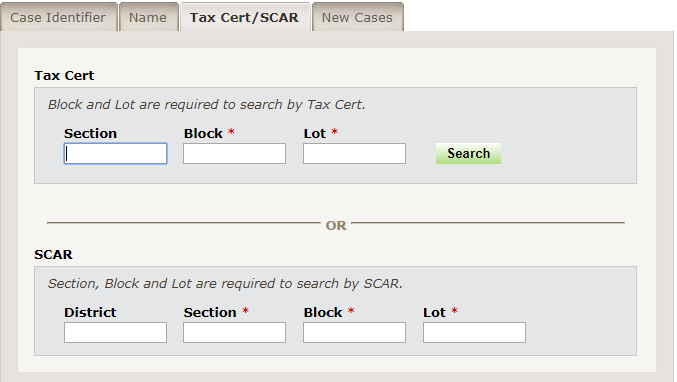
or Tax Cert/SCAR matters (by block and lot):
You also may narrow your search under any of these criteria by clicking the
Show Narrow By Options button before clicking the Search button. These narrow by options include county, case type, and filing date range.
Once you have entered at least the minimum information required, click on the Search button. Your search results will be
displayed.
Back to Table of Contents
Your Account
Users of the NYSCEF Live System have the ability and obligation to manage account information.
In fact, users are immediately
instructed to change the password assigned when an account is first set up. Users are also obligated to immediately report to the
E-Filing Resource Center any concern that a User Name and Password has been compromised.
To view additional account
information, log in to the NYSCEF Live System and look to the panel of resources on the left. In the My Account section, click on the
"View" link.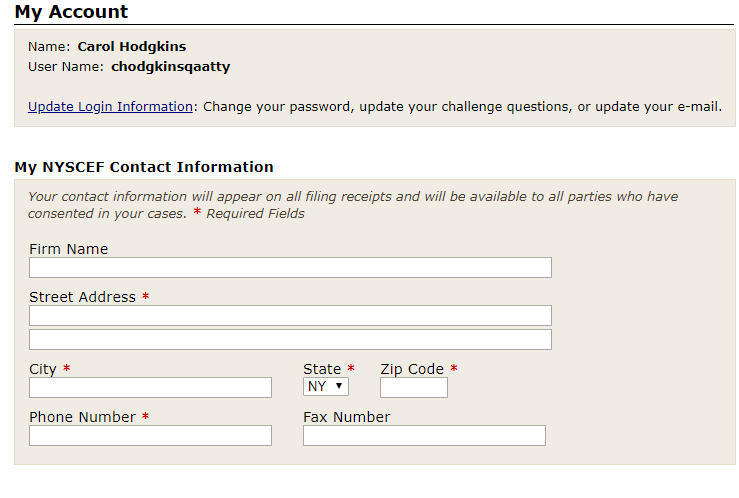
Note that the primary e-mail address for your account is
the e-mail service address of record registered with the Office of Court Administration. To change the primary address for service,
choose the "Forms" link at the bottom of the screen where you will find the Change of Primary E-Mail Address Form. Complete the form and
transmit it to the E-Filing Resource Center. To modify account information other than the primary e-mail address, please contact the
E-Filing Resource Center at (646) 386-3033 or
nyscef@nycourts.gov.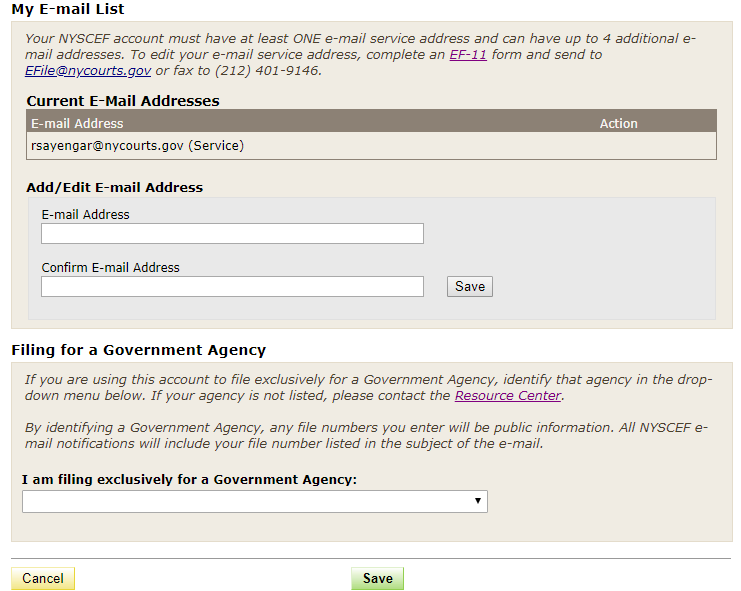
Back to Table of Contents
Forgot Your Password?
If you have forgotten either your User Name or your Password, simply click on the link in the Login box:
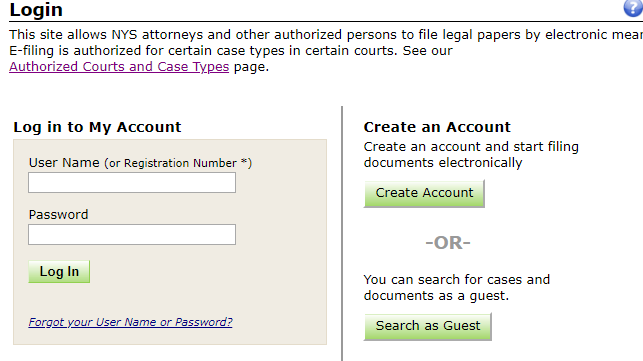
You will be asked to enter either your user name or your e-mail address
(as long as the e-mail address entered is associated with only one User Name). If you enter your user name and click Next, you will be
asked to answer a challenge question. If you enter your e-mail address, a secure e-mail will be sent to you allowing you to reset your
password for the account.
Back to Table of Contents
Need Additional Help?
If you still have questions about NYSCEF that this manual has not answered, please contact the E-Filing Resource Center at (646)386-3033 or nyscef@nycourts.gov or by clicking on the "Contact Us" link on any NYSCEF screen.
Back to Table of Contents