The Judge in this court and part is participating in a program for the submission of evidence electronically through a Virtual
Evidence Courtroom (VEC) located on the NYSCEF website. If a case has
been approved by the Judge for a virtual hearing or trial using this new format, all attorneys and any unrepresented litigants who
have recorded their participation in e-filing for the matter, will receive an email notification which will list the Virtual Evidence
Courtroom number, hearing type, and date (VEC # - Type - Date). Each type of hearing will be assigned a separate Virtual Evidence
Courtroom number. Below is an example of the e-mail.
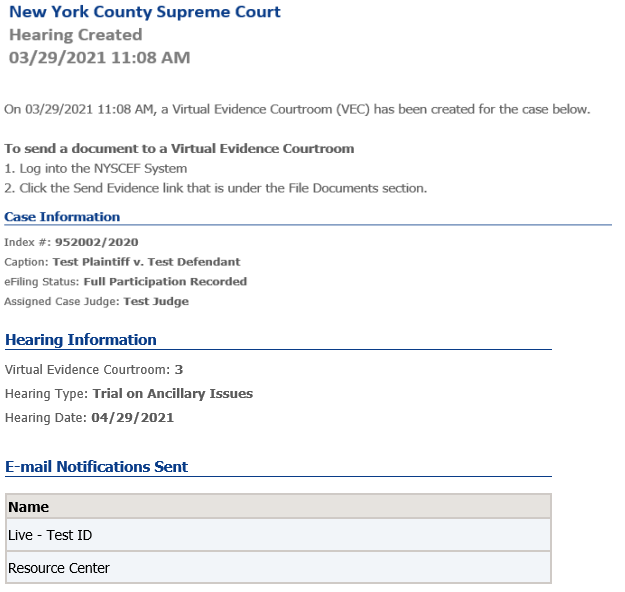
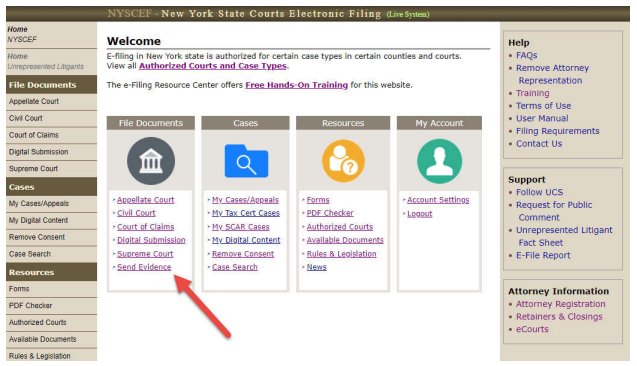
Once you receive the e-mail notification you will be able to submit your evidence documents. To begin, log into your account in NYSCEF. On the welcome page select the "Send Evidence" link located under the File Documents column. (see below screenshot)
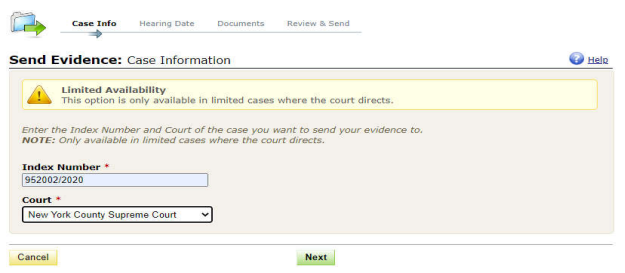
After clicking the Send Evidence link, you will be prompted to enter the index number of your case and to select the court.
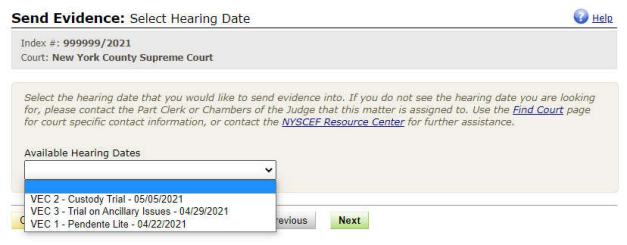
Once the system confirms that a hearing in the case and court has been scheduled, a list of all scheduled hearings will be displayed.
Be sure to select the correct Virtual Evidence Courtroom - (VEC #) – which will also display the Hearing type and date. Then click
next.
Please make sure you are in the right courtroom. The courtroom number indicates the type of hearing or trial. If the
hearing or trial continues to another day then it is still the same Virtual Evidence Courtroom number.
If a different type
of hearing is held in the same case then that hearing or trial could be in a different courtroom number. For example, an evidentiary
hearing on a pendente lite application would be in one Virtual Evidence Courtroom, while the actual trial a few months later would be
in a different Virtual Evidence Courtroom.
Once you select the correct Virtual Evidence Courtroom you will be brought to the document upload page where you will be able to
select the appropriate upload from a list of available documents.
Available documents are listed below.
AFC Bulk Exhibit(s) On Consent
AFC Court Exhibit (Proposed)
AFC Exhibit for Identification
AFC Exhibit for Judicial Notice (Proposed)
AFC In Camera Inspection (Court Permission Required) *
AFC Initial Fact Sheet
AFC Proposed Exhibit List
AFC Proposed Witness List
AFC Trial Memorandum
Contested Issues Plaintiff/Defendant
Court Exhibit (Proposed)
Defendant’s Bulk Exhibit(s) On Consent
Defendant’s Court Exhibit (Proposed)
Defendant’s Exhibit for Identification
Defendant’s Exhibit for Judicial Notice (Proposed)
Defendant’s In Camera Inspection (Court Permission Required) *
Defendant’s Initial Fact Sheet
Defendant’s Proposed Exhibit List
Defendant’s Proposed Witness List
Defendant’s Trial Memorandum
Findings of Fact/Conclusion of Law (Proposed)
Joint Exhibit for Identification
Plaintiff’s Bulk Exhibit(s) On Consent
Plaintiff’s Court Exhibit (Proposed)
Plaintiff’s Exhibit for Identification
Plaintiff’s Exhibit for Judicial Notice (Proposed)
Plaintiff’s In Camera Inspection (Court Permission Required) *
Plaintiff’s Initial Fact Sheet
Plaintiff’s Proposed Exhibit List
Plaintiff’s Proposed Witness List
Plaintiff’s Trial Memorandum
Proposed Signed Stipulation of Settlement (Full or Partial)
Stipulation of Facts Not In Dispute
* These court authorized documents will only be viewable by the submitter and the court pending review and
determination by the court.
Though there are documents on the list that apply to all parties, most documents are specific to your role in the case. If selecting one of those documents be sure to select the corresponding document type related to your role. For example, if you are the Plaintiff submitting a proposed exhibit for identification, choose the document type "Plaintiff's Exhibit for Identification". If selecting any proposed exhibit document type you will also be required to input an exhibit number or letter as well as additional document information describing the exhibit.
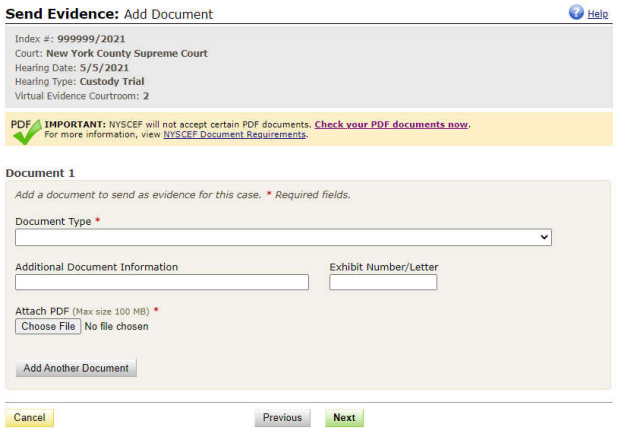
Click on "Choose File" or "Browse" to select the document you wish to attach. Note at this time you may only submit documents in
PDF/A format.
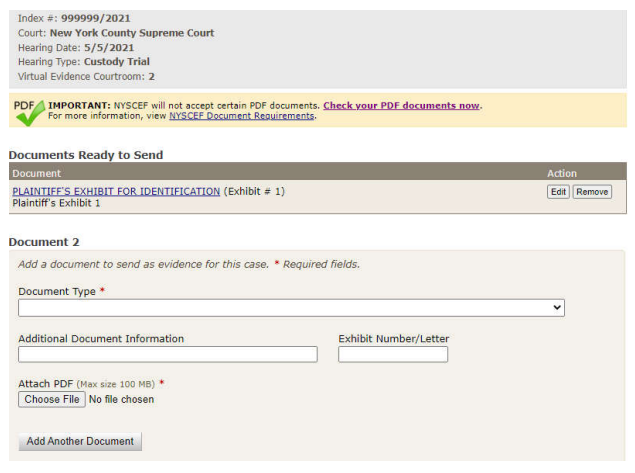
After you have completed all fields for the first
document you can click on "Add Another Document" to continue adding and uploading additional evidence documents. Once you have
uploaded all your evidence documents click Next.
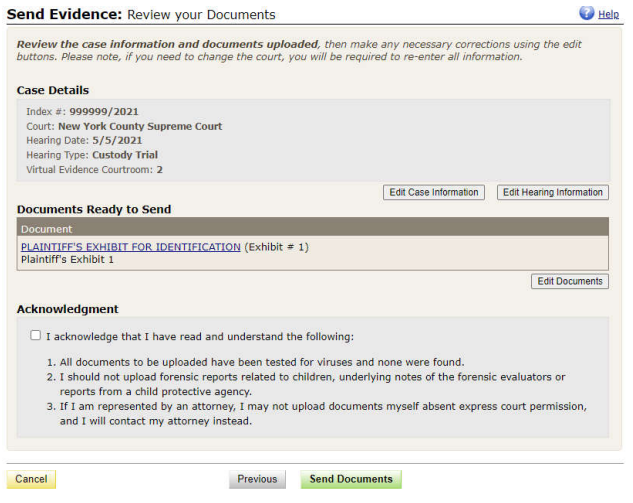
On the final review and send documents screen you will view the case details along with a link to edit case information and edit
hearing information.
A complete list of all documents uploaded into evidence will be displayed. Review and edit as needed.
Next, review and check the filing acknowledgment box and click send documents to submit your evidence. An email confirmation will be
forwarded to you, the court, and all other participating parties in the matter.
Return of Documents by Court
If a document is returned by the court for any reason, you will receive an
email notification.
Important Note: unlike documents returned in a NYSCEF case, a
"Re-file document" link will not be provided in the Virtual Evidence Courtroom. If a document is returned, you will be required to
upload the document as a new submission. Make the corrections needed and then follow the same steps above to resubmit the document.
Viewing of Documents after Submission
Please note that documents submitted through the Virtual
Evidence Courtroom do not become part of the official County Clerk’s Office record. They will not appear on the NYSCEF list of
documents for the case. These documents will remain in a separate and secure Virtual Evidence Courtroom, each such courtroom will be
assigned a number (#). You will be able to view documents before and during the hearing.
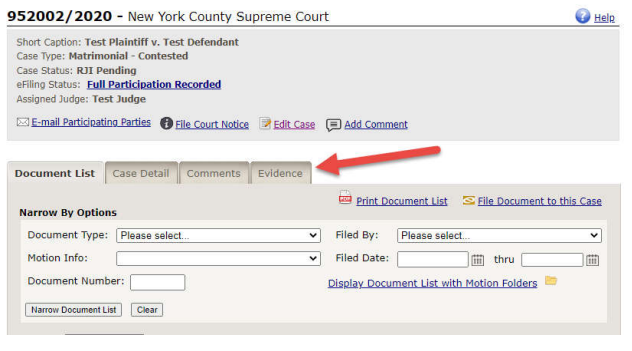
To view evidence/documents before
or during a hearing you will need to go to the NYSCEF document list for the case. You can go to the NYSCEF document list by clicking
on "My Cases/Appeals" and clicking on the index number or do a case search and manually type in the index number. Once you are on the
NYSCEF document list you will see multiple tabs at the top of the page. Click on the Evidence tab.
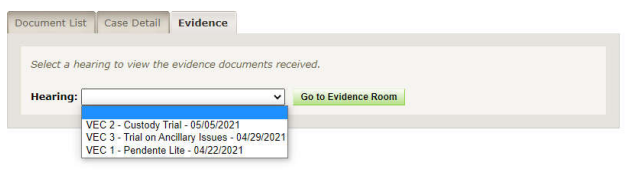
Once you click the evidence tab, you’ll be prompted to select the evidence/hearing you wish to view. Select the hearing which is identified by Virtual Evidence Courtroom number, hearing type, and date. (VEC # - Type- Date), then click on the "Go to Evidence Room" button.
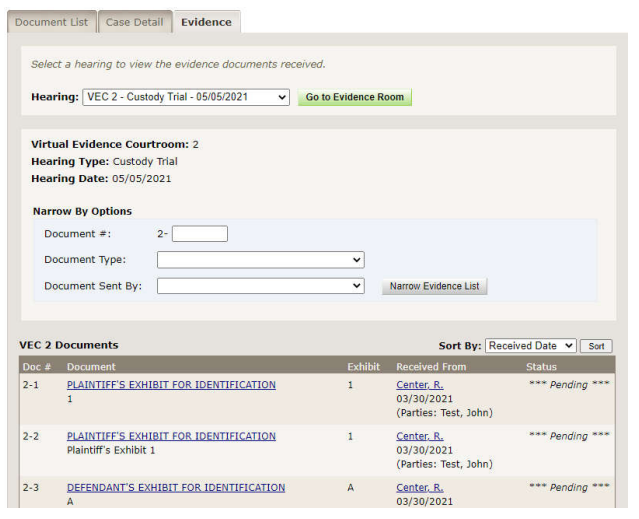
Once you are in the evidence courtroom you will have the ability to view documents that were submitted. You will have the ability to sort the documents as well. The status column will indicate if the document is pending, purged, returned, or admitted into evidence by the Judge.
For questions or more information contact the nyscef@nycourts.gov.